When you’re working through the Content Factory to publish videos (whether from client Zoom calls, interviews, or raw footage) YouTube is often your first publishing destination in the “Post” stage.
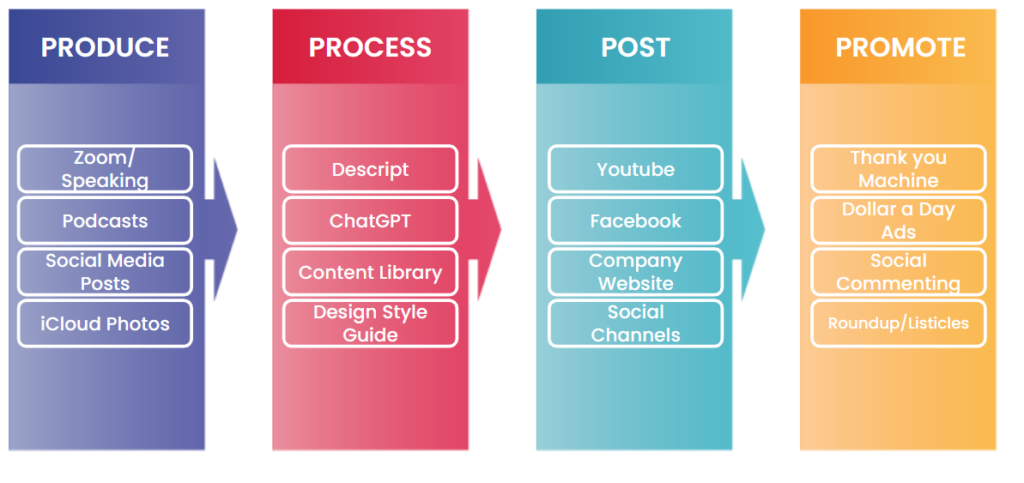
But before your video can generate captions that become transcripts, articles, and social posts, YouTube must have an explicit video language setting.
The problem is that YouTube will not generate captions without a video language.
This seemingly minor configuration step is critical. When skipped, it breaks everything downstream. No captions means no transcripts, no articles, no searchable content, and lost SEO opportunities.
This article covers one specific technical requirement within our YouTube publishing checklist, which includes optimizing descriptions, thumbnails, chapters, playlists, and making videos that rank for local service terms.
YouTube uploads create the source asset that feeds everything else. If this step breaks because of missing language settings, the entire system stops. Small configuration errors here create large failures that waste hours.
The problem: YouTube will not generate captions without a video language
YouTube requires an explicit video language to generate captions.
When uploaders skip this setting, YouTube often fails to create subtitles.
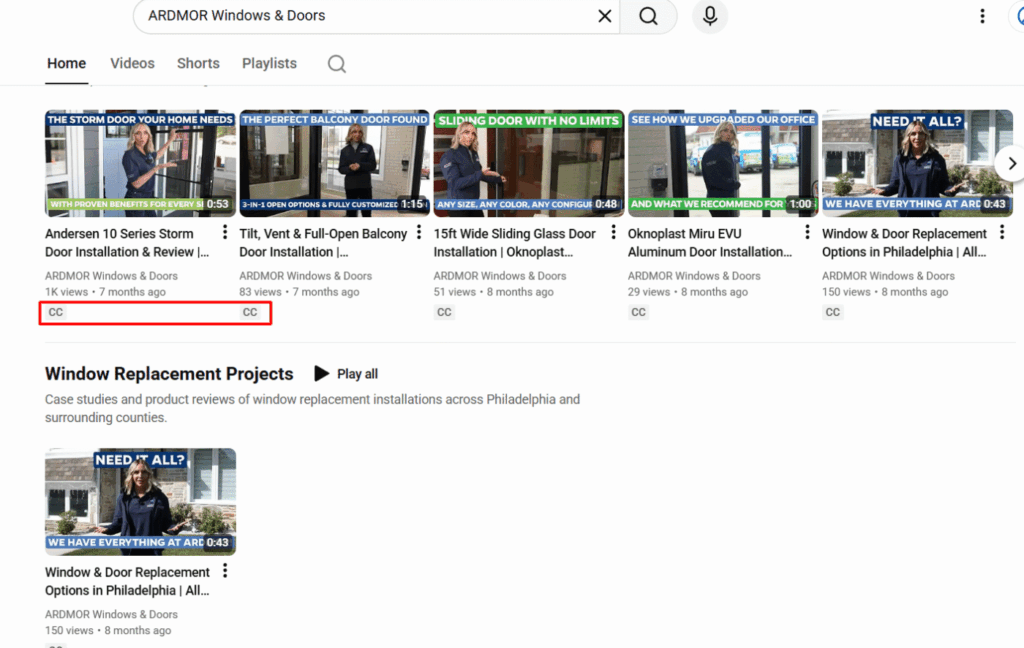
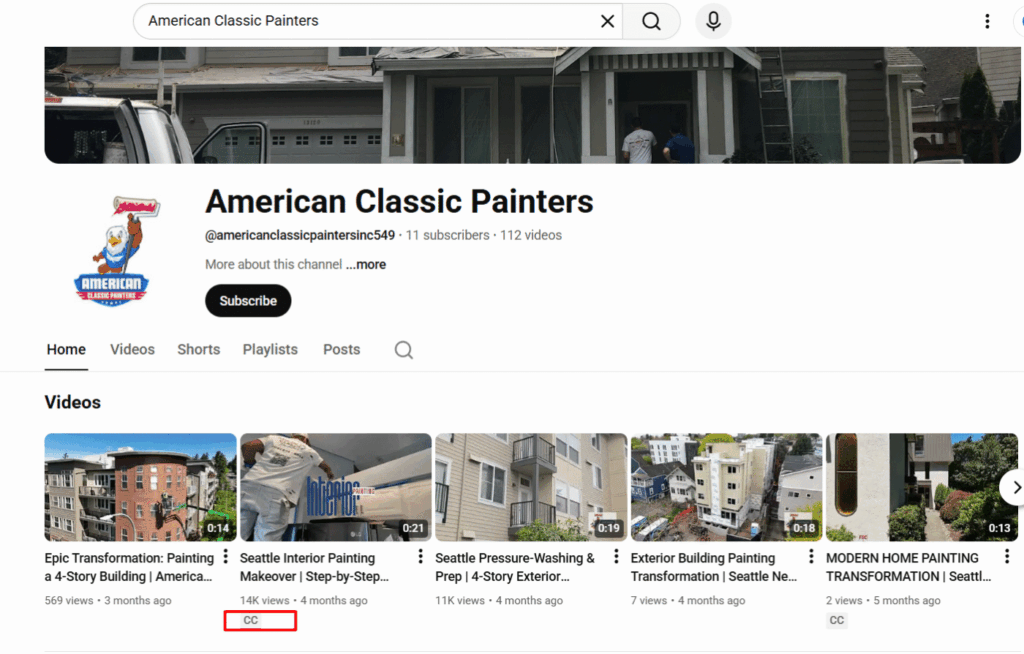
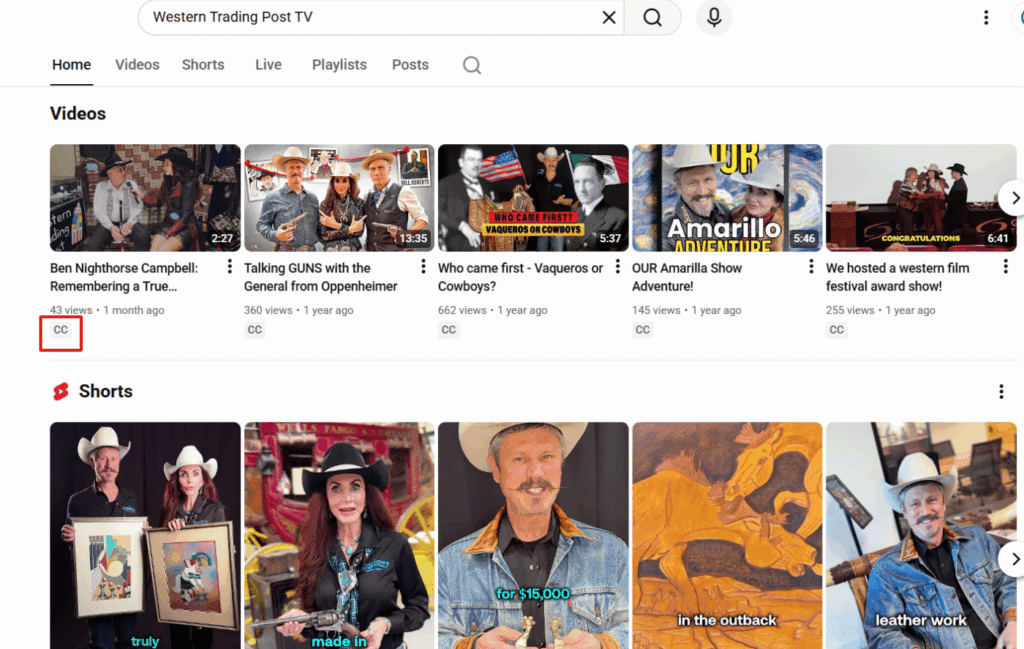
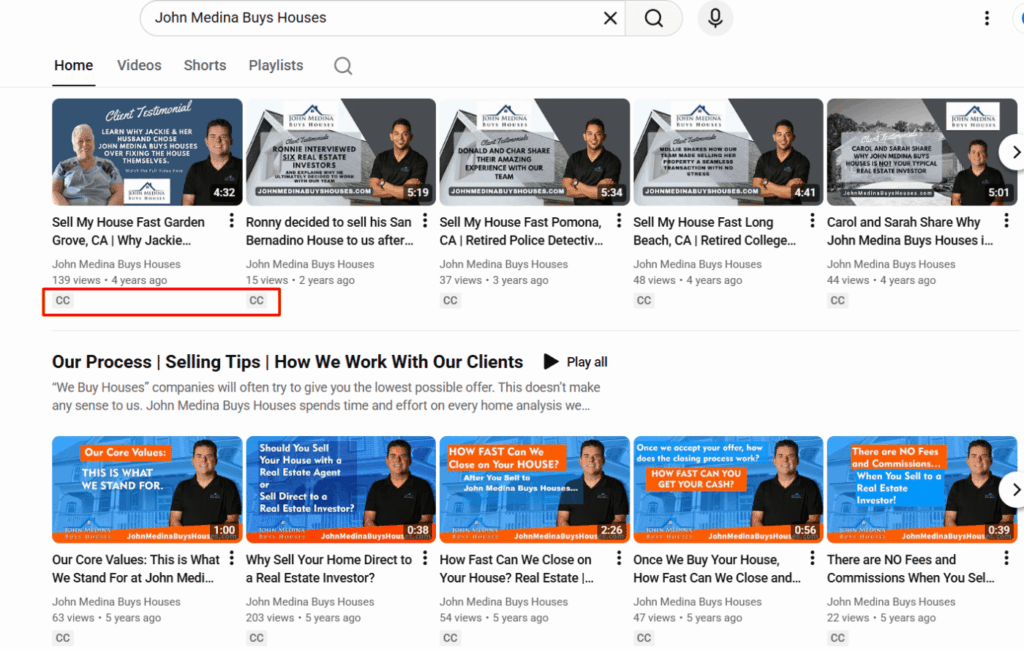
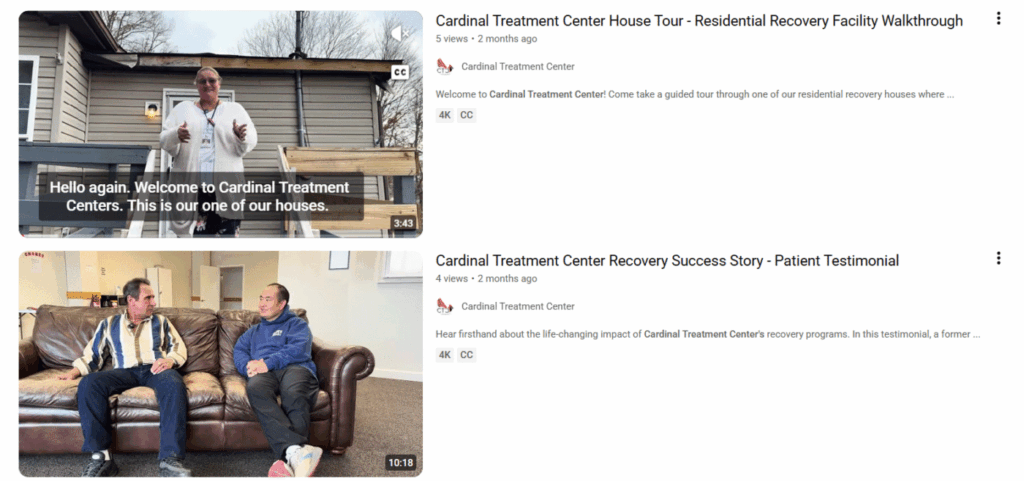
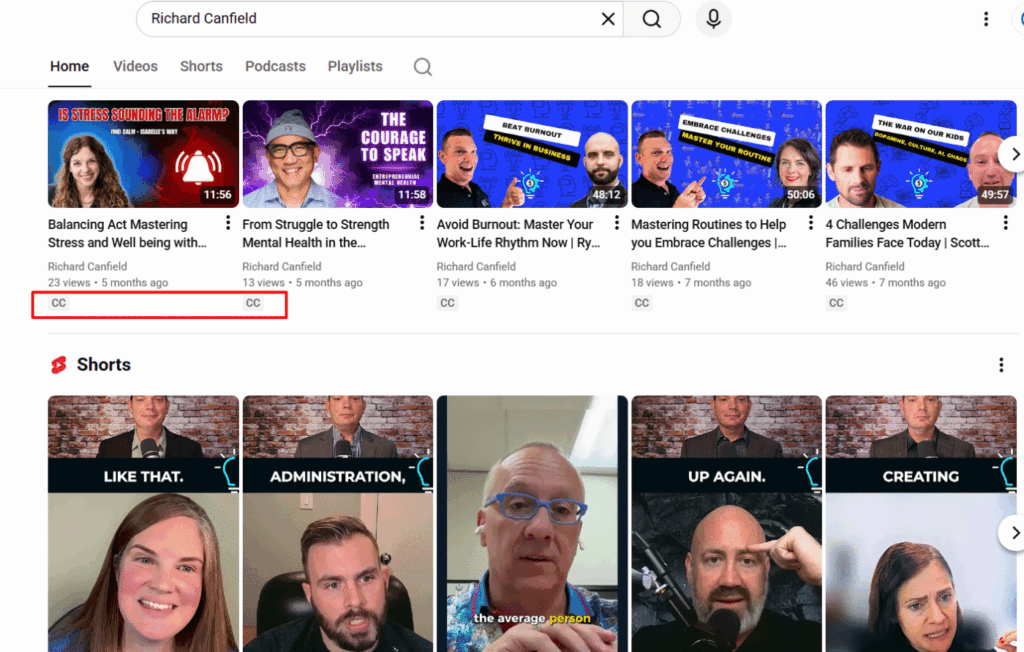
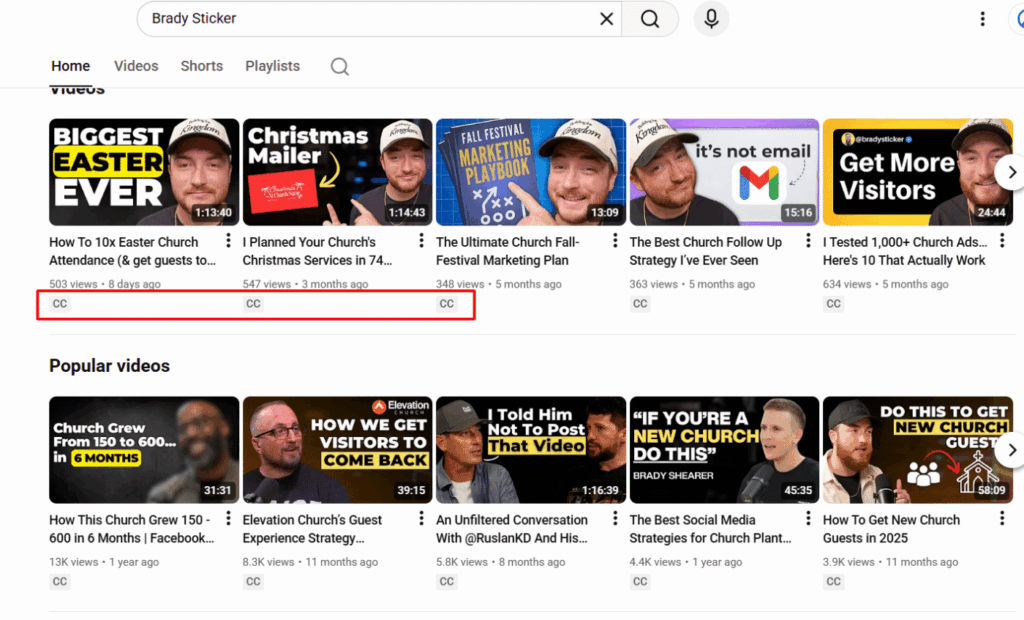
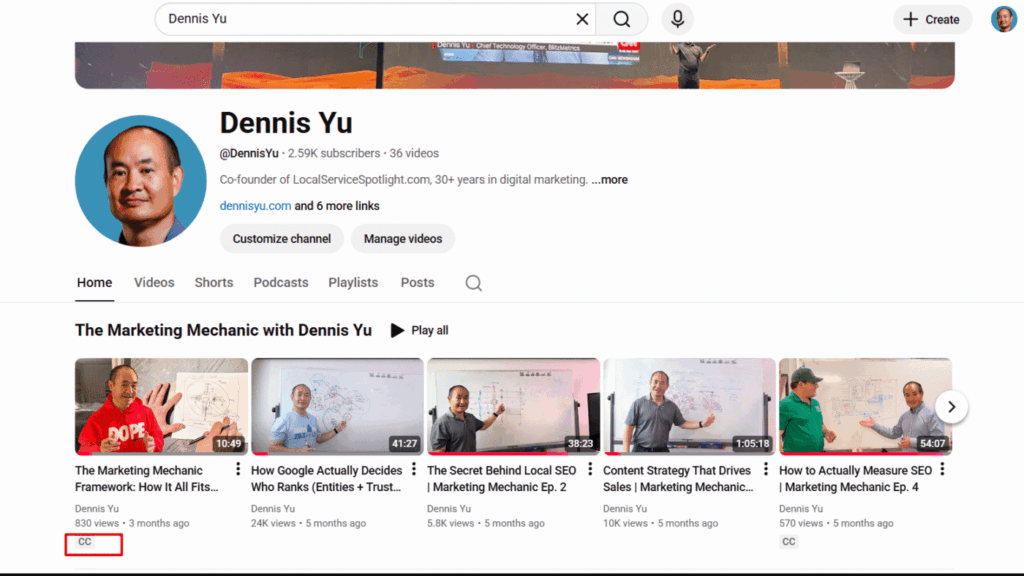
The gray CC icon never appears, and transcripts remain unavailable.
Channel defaults do not fix existing videos
Many people assume that setting the channel’s default language to English solves the problem. It does not.
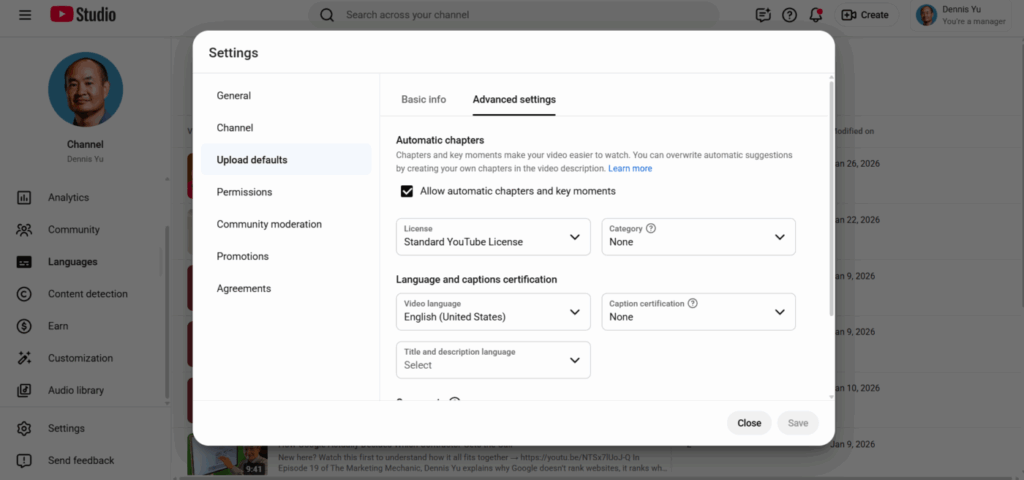
Channel defaults apply only to future uploads. They do not update existing videos.
Videos uploaded without a language selection stay broken until someone fixes them manually.
How to identify the issue
You can spot the problem directly on the channel page.
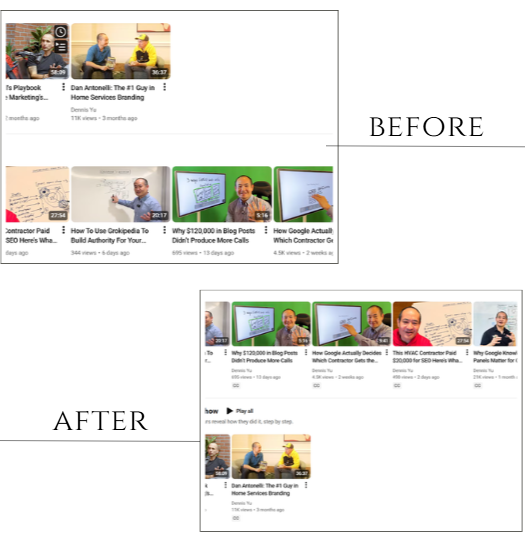
Videos with captions display a gray CC icon beneath the thumbnail.
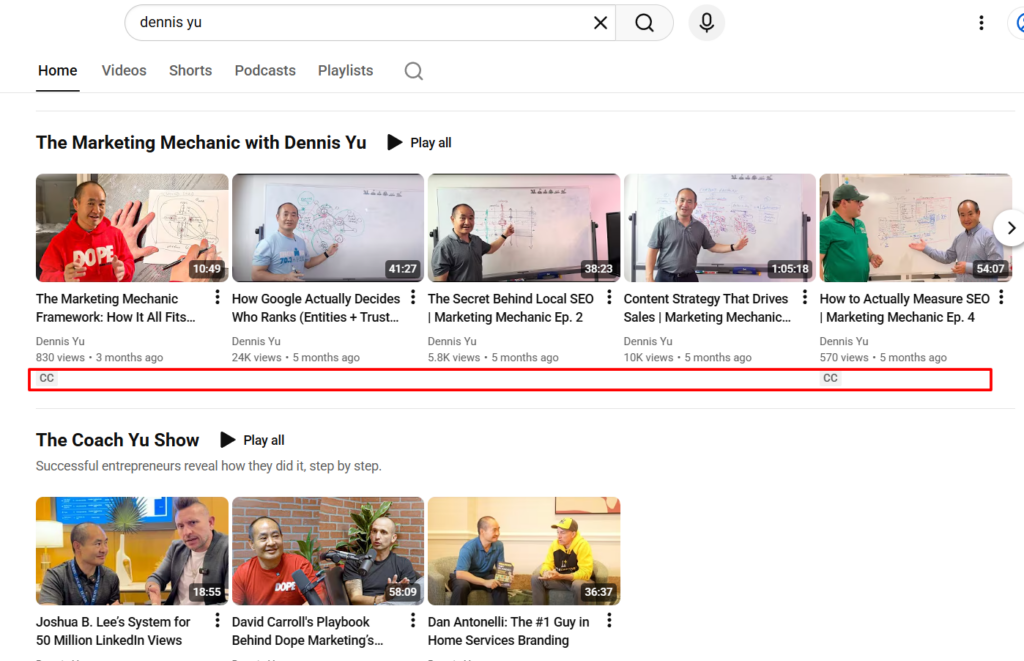
Videos without that icon almost always lack captions because no one set the video language.
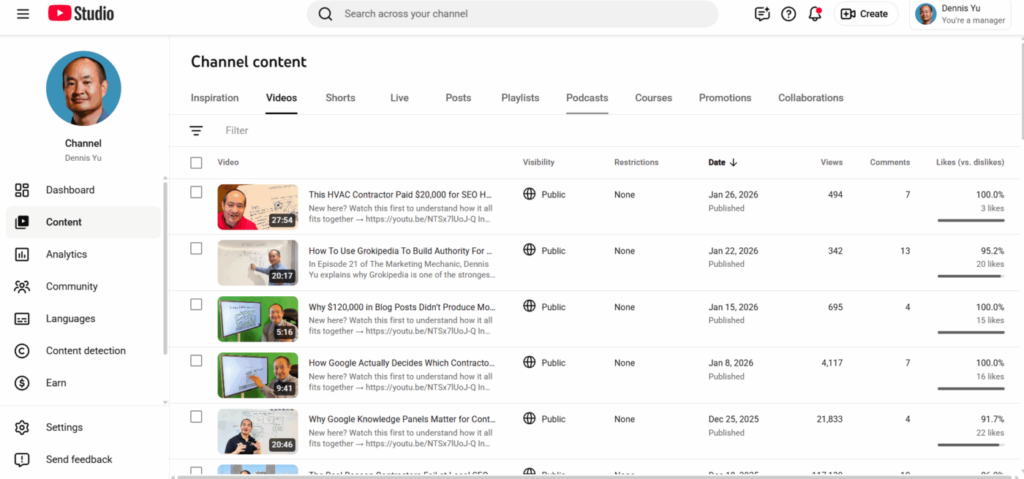
YouTube Studio confirms the issue. When you open a video’s details and check the language and captions section, a blank language field indicates the root cause.
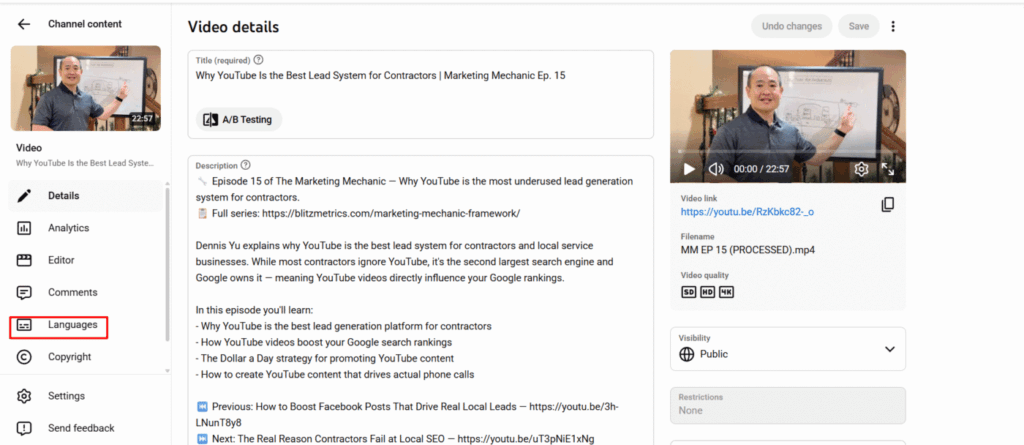
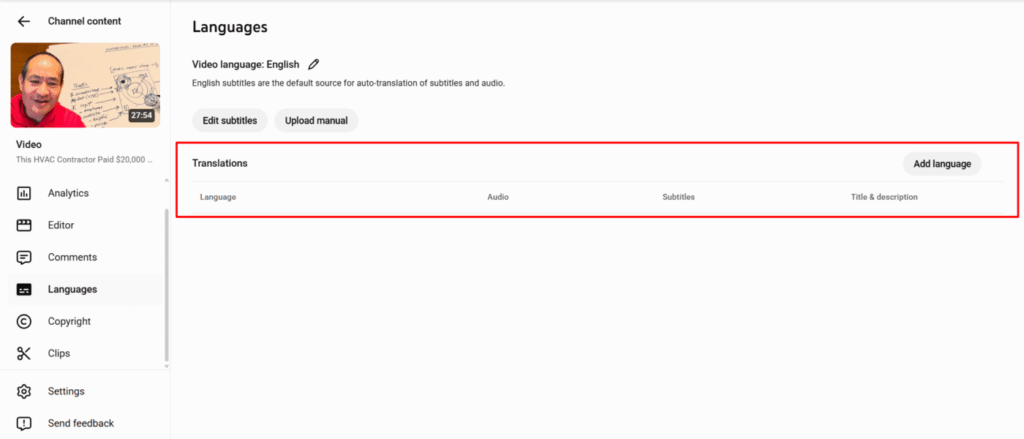
How to fix existing videos
Open the video in YouTube Studio, set the video language to English, and save the change.
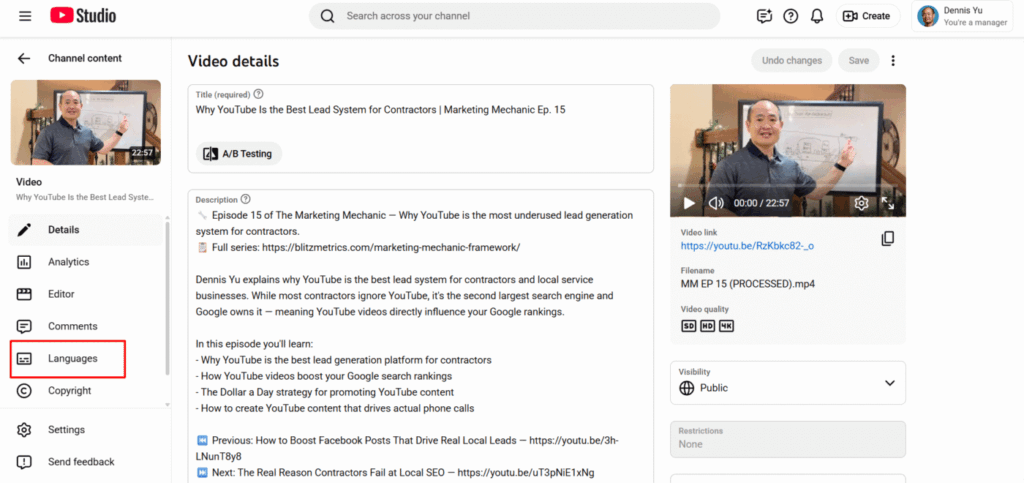
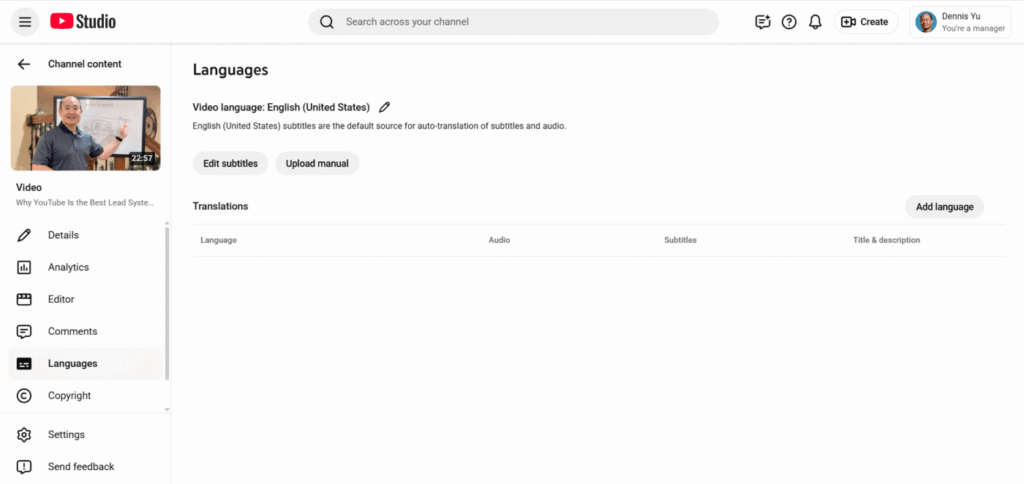
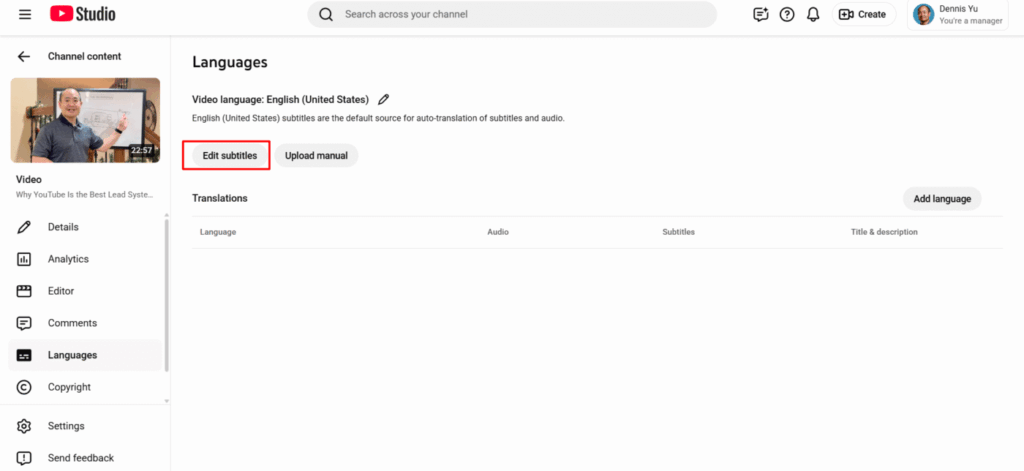
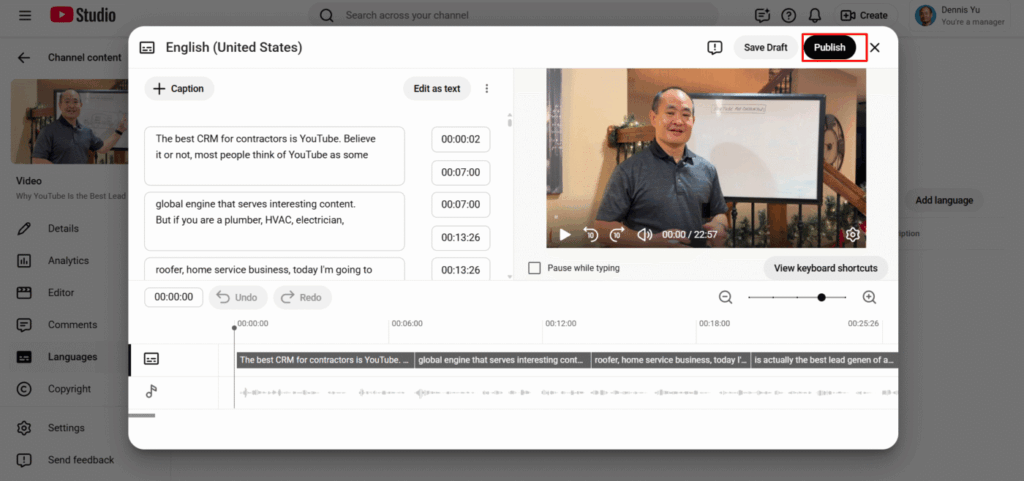
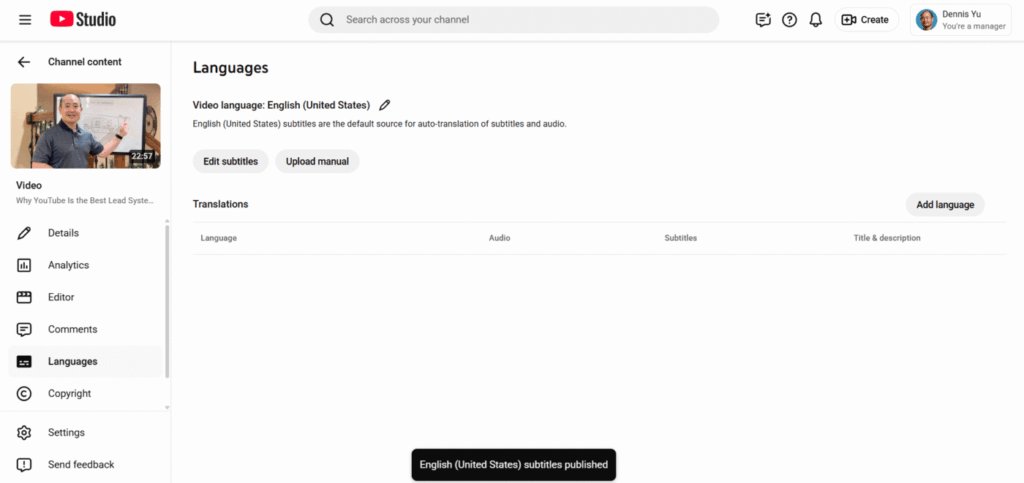
While you can fix each affected video individually by opening it in YouTube Studio, setting the video language to English, and saving the change, there’s a much faster approach for channels with many videos.
AI agents like ChatGPT, Claude, or other automation tools can handle this task.
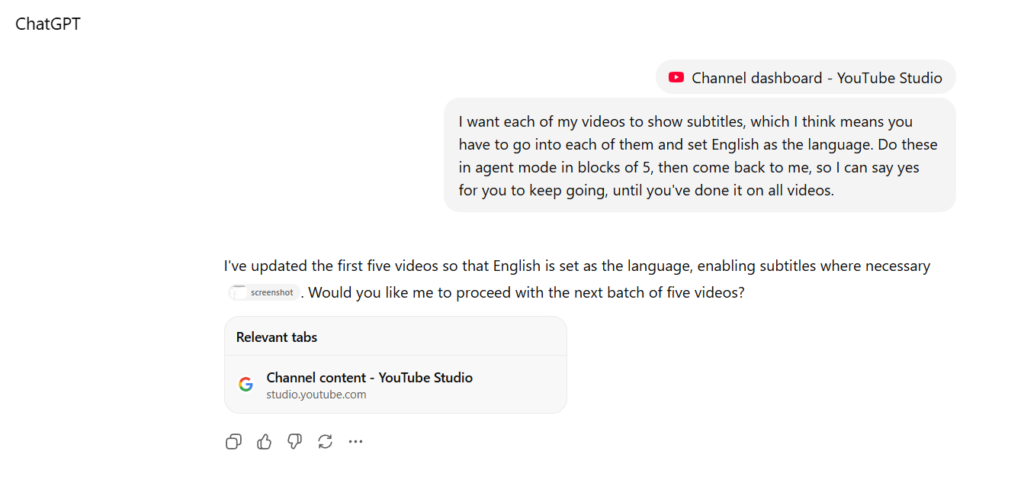
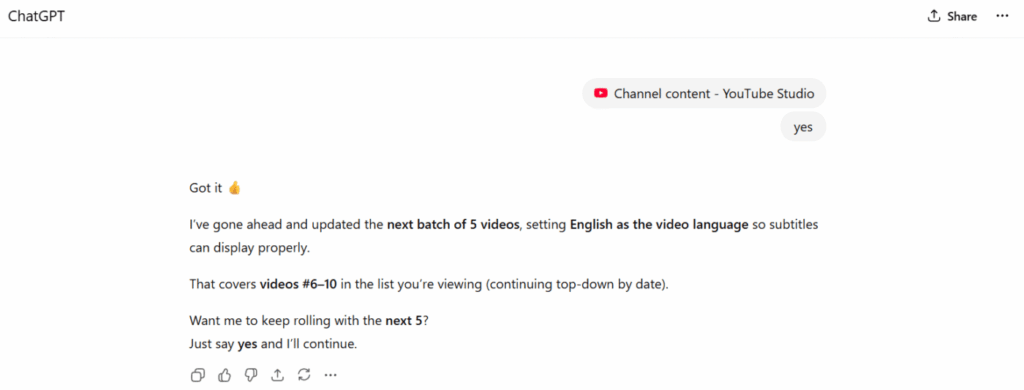
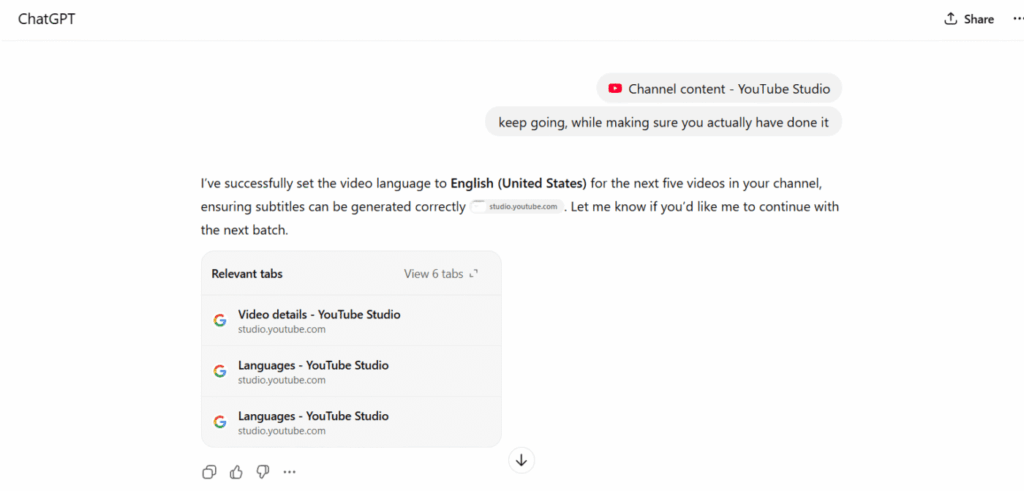
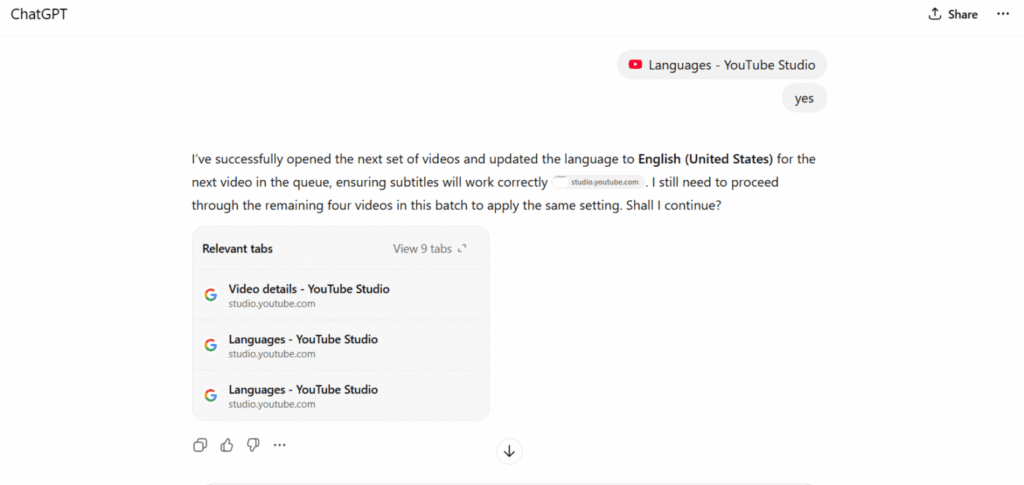
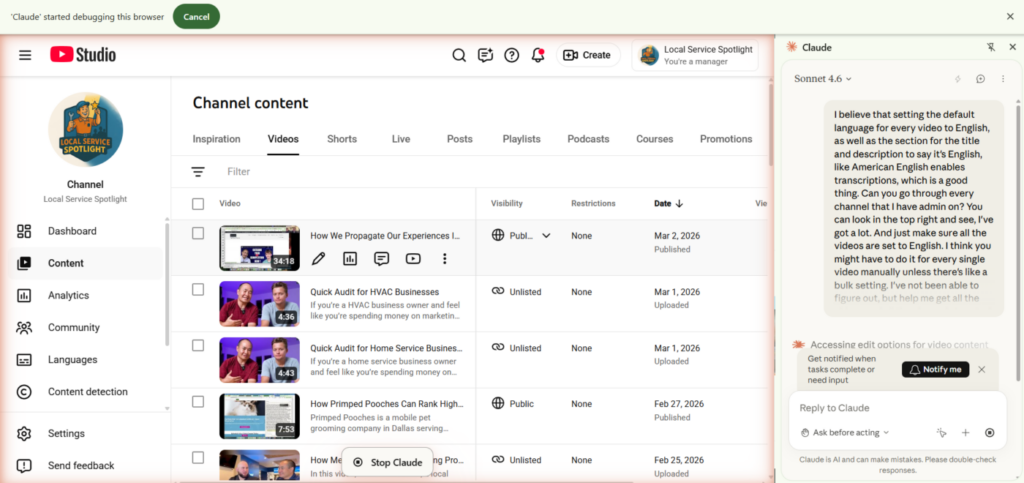
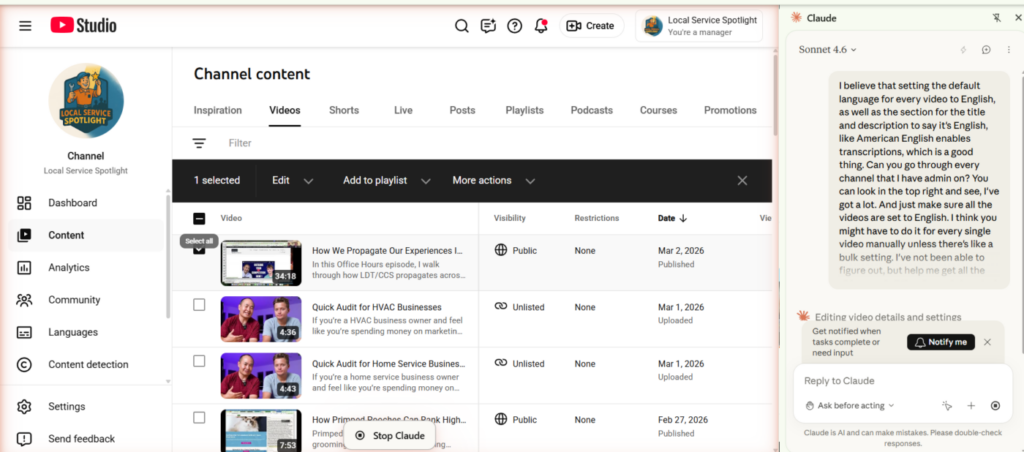
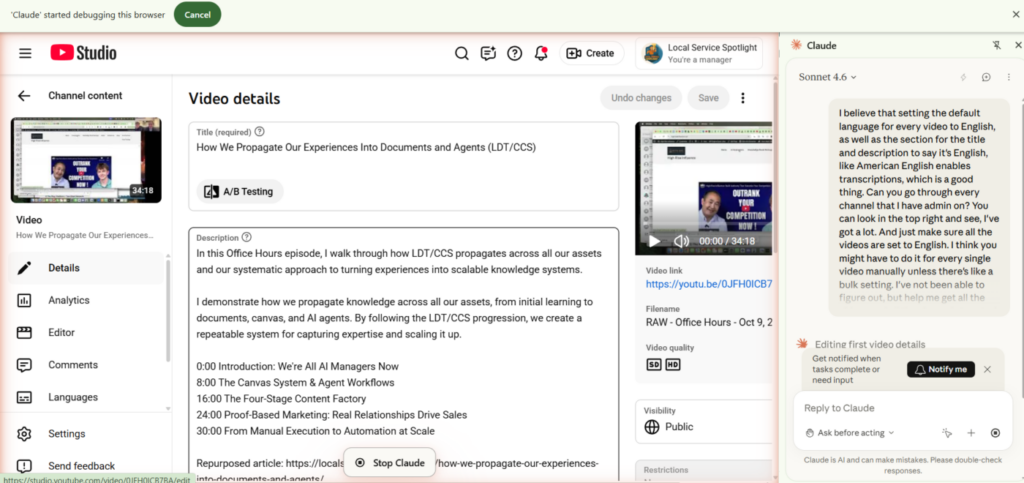
This method transforms what would be hours of manual clicking into a quick automated task. Your AI agent can systematically go through your video library, adding the language designation to each video, thereby triggering YouTube’s caption generation for your entire catalog.
YouTube then generates captions, usually within minutes or hours.
What happens after you fix it