
While we don’t generally recommend changing hosting providers, we understand that some clients prefer to manage their own hosting. If you choose to migrate your website off of our WP Engine hosting, WP Engine provides a migration plugin to help simplify the process. Below are the basic steps needed to move your website using WP Engine’s Site Migration plugin.
1. Prepare the Site for Export
Before anything else, we will provide the Migration Plugin and the site connection information to be used with the plugin from our WPEngine account.
This lets you download the files and connection info needed for the move.
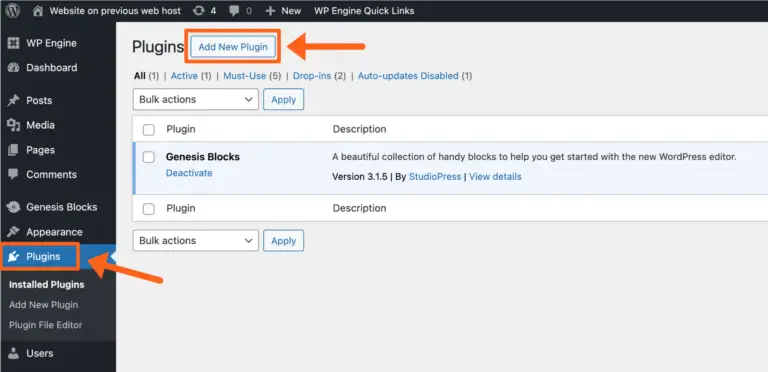
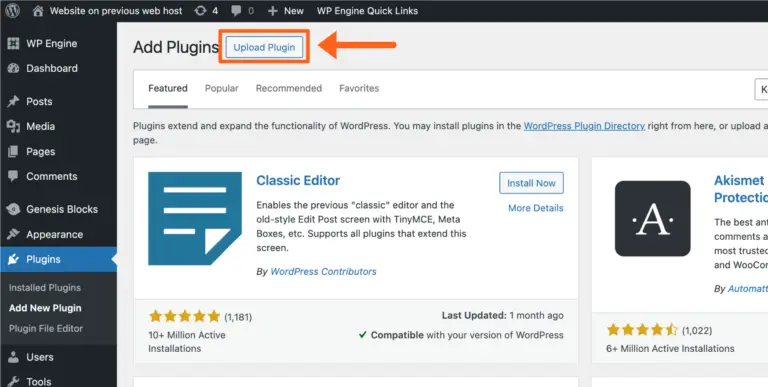
2. Install the Plugin on the Old Site
- Download the plugin we provide on the WP Engine site you are leaving
- Log into the WordPress dashboard on your old host (the site you are moving).
- Upload and activate the Site Migration plugin there too.
3. Generate & Use the Connection Info
- We will provide the connection info from our WPengine for migration
- Paste that connection info into the plugin on your old host.
- Choose to migrate the full site (recommended for most clients).
- Start the migration.


During this step, the plugin copies your site’s content, media, themes, plugins, and database over to the new platform.
4. Monitor & Complete the Migration
- You can enter an email to get status updates.
- The system will notify you once the migration finishes.
- Check on the new host that your site looks and works the way it should.

5. Final Steps
Once everything is copied and confirmed:
- Update your domain settings so your website points to the new hosting provider.
- Make sure your SSL certificate is set up (so your site loads securely).
- Test pages and functionality to ensure nothing was missed.
What You Don’t Need to Know
You don’t have to deal with:
- Manually exporting database files
- Deleting internal WP Engine-specific files
- Technical server settings
Those details are handled by either the migration tool or your new host if needed.
- If your site uses advanced services (like offloaded media or unusual custom setups), you may need extra steps — check with your new host.
- Multisite setups need special handling and may not move with this tool alone.
In the event that the WP Engine migration plugin fails or cannot be installed, the website may need to be migrated manually. In this scenario, the site’s files and database will need to be provided so they can be installed on the new hosting environment. This process is completed by following the steps outlined below.
Simplified Migration Instructions
(For Clients Moving Their Site Off WP Engine)
When moving your WordPress site from our WP Engine hosting to another hosting provider or a local environment, we will first prepare and provide the necessary website files. The steps below outline how the site is transferred and set up in the new environment to ensure it functions correctly.
1. Site Backup and File Preparation
We create a full backup of your website from WP Engine, including all website files and the database, to ensure a complete and reliable copy.
2. Removal of WP Engine-Specific Files
Before providing the files, we remove WP Engine-specific components that are not compatible with other hosting providers. This includes caching files and WP Engine-only plugins that will not function outside of the WP Engine platform.
3. Files Provided for New Hosting
Once prepared, we provide the cleaned website files for installation on your new hosting environment.
4. Upload Files to the New Host
The provided files are uploaded to your new hosting provider by you or your hosting team.
5. Import the Database
We include a database export file (commonly named mysql.sql) containing all site content, such as pages, posts, and user data. This file must be imported into the database on the new host.
We recommend keeping a local copy of this file until the website is confirmed to be working correctly.
6. Update the WordPress Configuration
The existing wp-config.php file should be replaced with a standard WordPress configuration file.
The new hosting provider’s database name, username, and password must then be added so WordPress can properly connect to the database.
7. Optional: Update Website URLs
If the website domain is changing or the site is being tested in a temporary or local environment, a search and replace may be required to update references to the old domain within the database.
8. Optional: External or Large Media Files
If your site used WP Engine’s LargeFS or external media storage, those files will need to be downloaded from their external location (such as Amazon S3) and uploaded to the new hosting environment.
What This Means in Plain Terms
- We prepare and provide a complete copy of your website.
- WP Engine-specific items are removed so the site can run on another host.
- You or your hosting provider upload the files and database to the new server.
- The site is connected to the new database and environment.
Once these steps are completed, your website should function on the new hosting provider just as it did on WP Engine.