
If you run a company account on X (formerly Twitter), you know the headache: your social media manager needs access, your content writer needs to post, and your marketing director needs to see analytics. The old solution? Share the password. The new solution? X Delegate.
X Delegate is a built-in feature that lets you invite team members to collaborate on your company’s X account by assigning them specific roles and permissions. No more sharing passwords, no more getting locked out when someone changes the login, and no more security nightmares. Here is exactly how to set it up and use it for your team.
What Is X Delegate?
X Delegate lets multiple users collaborate on a single X account by assigning roles rather than sharing login credentials. Think of it like giving your team members a key card to specific rooms in the building instead of handing out the master key. The account owner stays in control, and each team member gets only the level of access they need.
The feature is available on X.com and X Pro (formerly TweetDeck), though all setup and invitations must be done through X.com.
The Three Roles: Owner, Admin, and Contributor
X Delegate uses three permission levels, and understanding these is key to setting up your team properly.
The Owner is the person who holds the account credentials. Only the owner can manage the password, phone number, and login verification settings. The owner can also invite others as admins or contributors and take all actions on behalf of the account including posting, reposting, sending Direct Messages, liking, scheduling posts, deleting posts, and creating lists.
The Admin role is ideal for your social media manager or marketing lead. Admins can do everything the owner can do except manage password and security settings. Admins can invite and remove other contributors and admins, take all actions on the account (post, repost, DM, like, etc.), schedule and delete posts, create lists, build collections, and view post analytics. That analytics access is a big deal because it means your marketing team can track performance without needing the account password.
The Contributor role is the most limited and is perfect for content writers, interns, or anyone who just needs to post and engage. Contributors can post, repost, send DMs, like, schedule posts, delete posts, create lists, and build collections. However, contributors cannot invite or manage other team members, and they cannot view post analytics.
What Your Team Members Need to Do
Before you can invite someone, they need to have their Delegate settings configured to accept invitations. Each team member should log in to their own personal X account, go to Settings, then Security and account access, then Delegate.


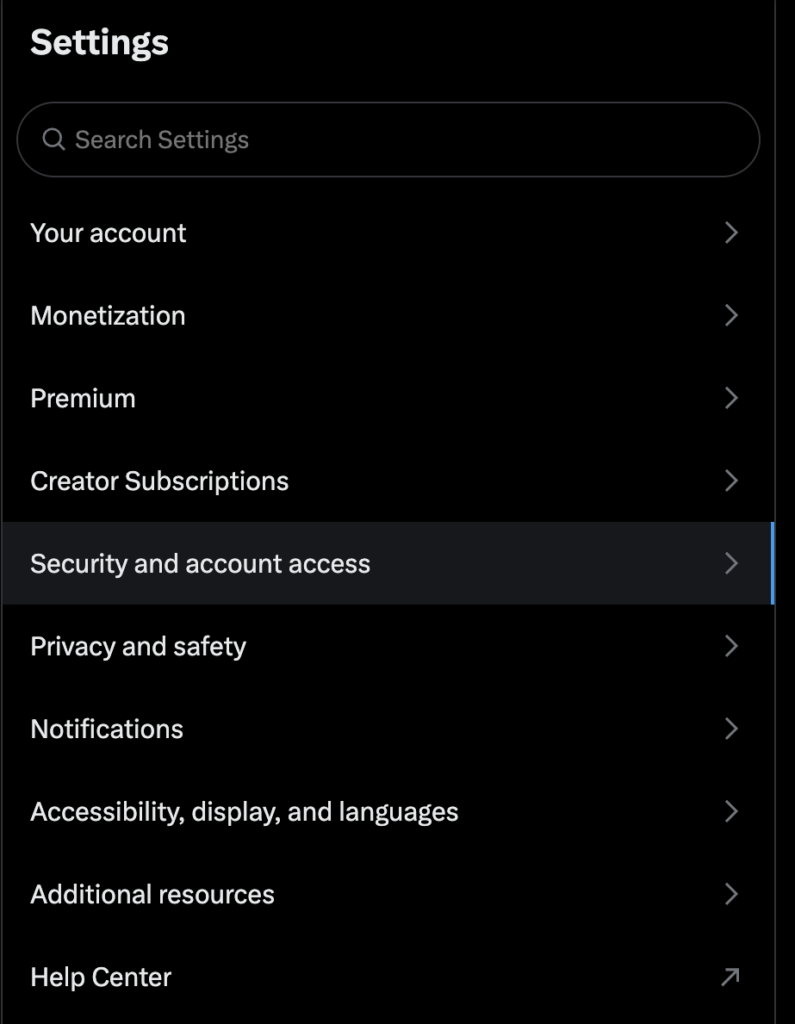
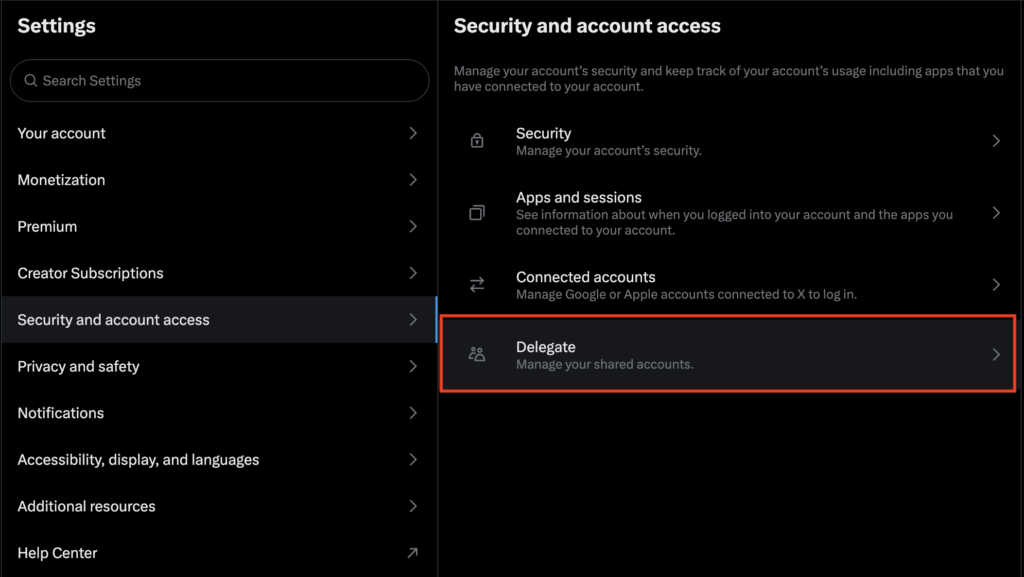
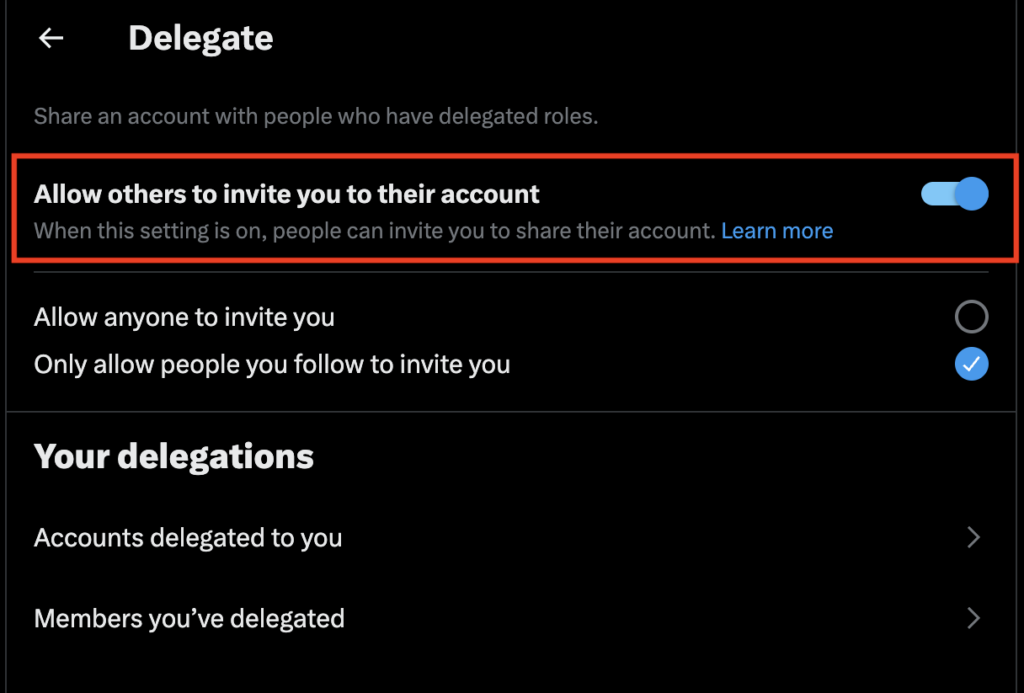
They need to make sure the toggle for “Allow others to invite you to their account” is turned on. They can also choose whether to allow anyone to invite them or only people they follow.
Once the invitation is sent, the team member will see a pending invite under “Accounts delegated to you” in their own Delegate settings. They simply click Accept to join the company account. After accepting, they can switch between their personal account and the company account seamlessly without logging in and out.
To change someone’s role or remove them entirely, go to Delegate settings, click on “Members you’ve delegated,” find the person, and select either “Change role” or “Remove from account.” If a team member wants to leave on their own, they can go to their own Delegate settings, click on “Accounts delegated to you,” select the company account, and click “Leave account.”
One important thing to know: if you change the password on your company account, your delegates will not lose access. This is the whole point of the feature — their access is tied to their delegation role, not the password. So you can update your password anytime without disrupting your team’s workflow.
Step-by-Step: How to Invite Team Members
Here is the exact process to delegate access to your team. You will need to be logged in as the account owner on X.com to do this.
First, log in to X.com with your company account. Click on “More” in the left sidebar, then go to Settings and Support, then Settings and Privacy. From there, select “Your account” and then “Security and account access.” You will see an option called “Delegate” — click on it. This takes you to the Delegate settings page where you can manage everything.
On the Delegate page, you will see a toggle at the top that says “Allow others to invite you to their account.” Below that, you will find “Your delegations” with two options: “Accounts delegated to you” and “Members you’ve delegated.” Click on “Members you’ve delegated” to start inviting your team.

Click “Invite a member” and a search box will appear.
Type the name or @username of the team member you want to add. Select their profile, choose whether to assign them as an Admin or Contributor, and then click “Send invite.” That is it from your side. The team member will receive an email notification and an invitation inside their own Delegate settings on X.com.
Managing and Removing Team Members
People come and go from teams, so knowing how to manage delegates is just as important as knowing how to add them. Only the account owner and admins can manage the team — contributors do not have this ability.
Best Practices for Company Teams Using X Delegate
Give your marketing director or social media manager the Admin role so they can manage the team and view analytics. Give content creators, writers, and interns the Contributor role so they can post and engage without being able to change team settings. Keep the Owner role strictly to the business owner or the one person who manages the account password and security. Remember that the account owner is ultimately responsible for all content posted by admins and contributors, so make sure everyone on your team understands your brand voice and posting guidelines before you grant access.
The Bottom Line
X Delegate is one of those features that every company running an X account should be using. It replaces the risky practice of sharing passwords with a proper role-based system where you can control exactly who does what. Setup takes about two minutes per team member, and it gives you the peace of mind that your company’s social media access is secure and well-organized. Go to x.com/settings/delegate right now and get your team set up.