
When you join as an AI Builder, we set you up in Basecamp, our project management tool where all the work happens.
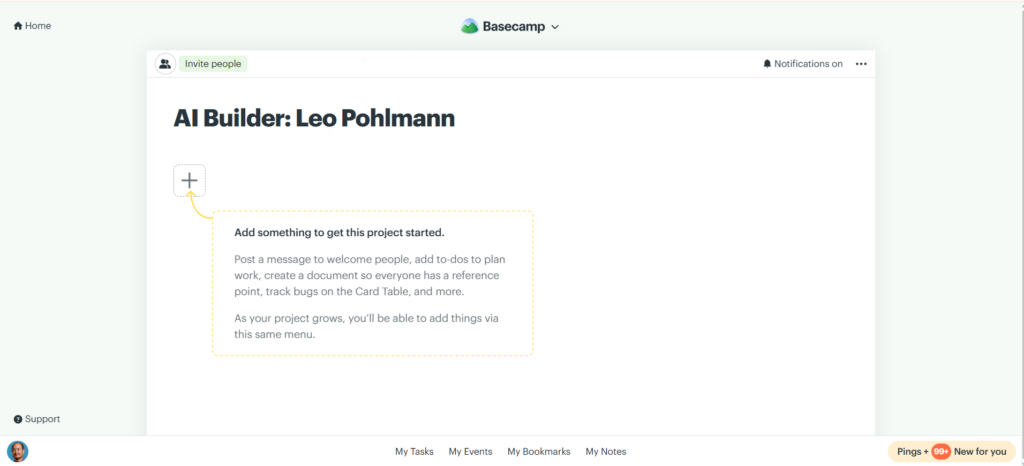
Every thread, every client task, every training discussion, it’s all tracked in Basecamp. Nothing gets lost.
How you get access
Our Operations team creates a project for you called “AI Builder: [Your Name].”
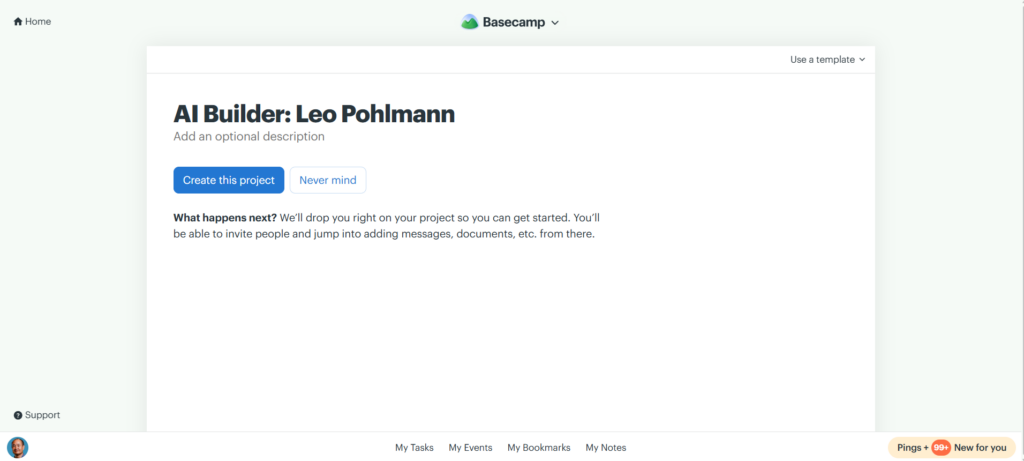
Then they invite you as a Client on that project using your email.
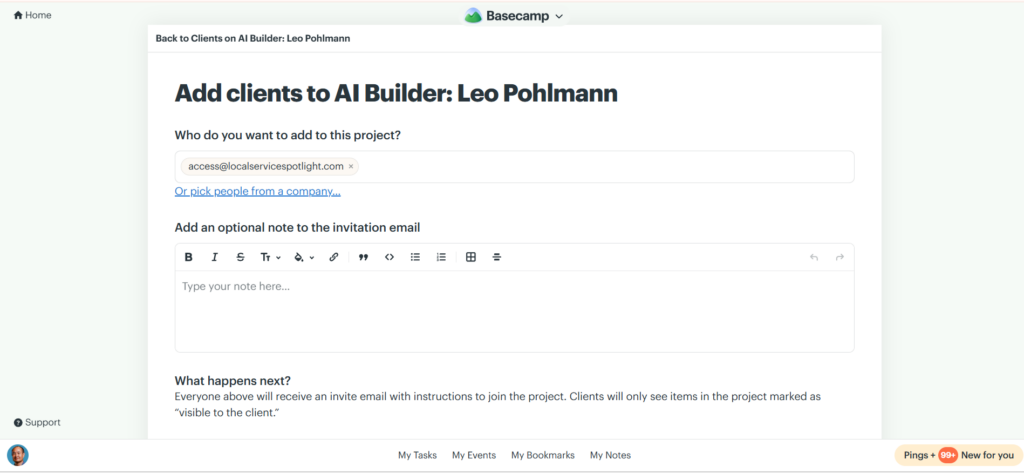
Simple as that.
Accepting your invitation
You’ll get an email from Basecamp with a big button that says “Join Dennis in Basecamp.”

Click it.

Either create a new account or log in if you’ve used Basecamp before.
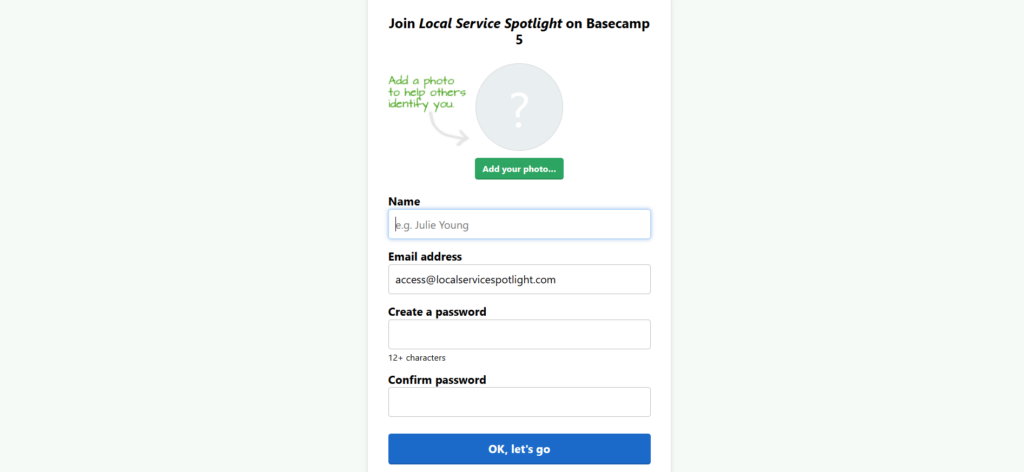
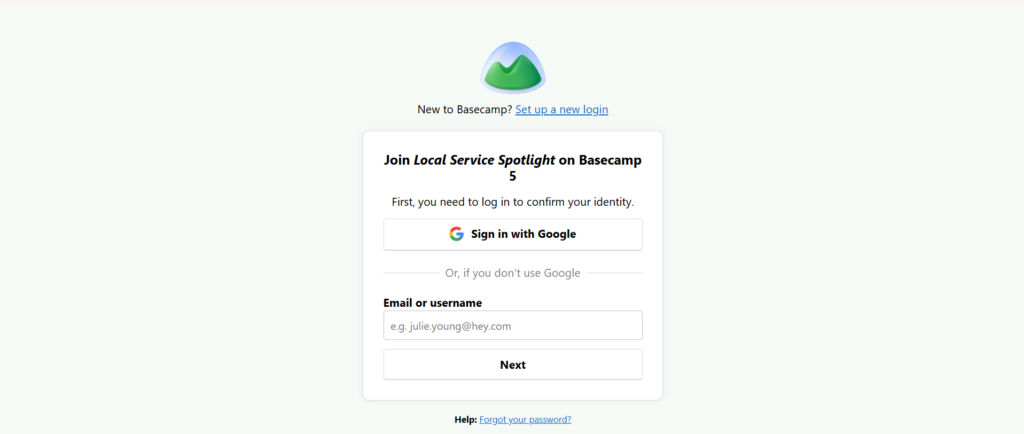
Password needs to be 12+ characters. Don’t skip this or you’ll be locked out.
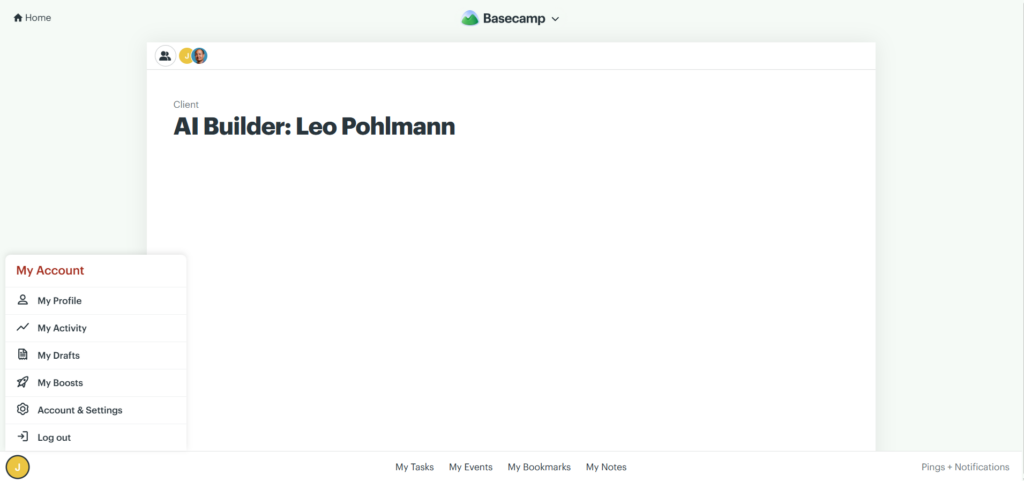
What you can see
Once you’re in, you’ll see your AI Builder project and anything the team has marked as “visible to the client.”
From the home page, you can see other projects you’ve been added to. So don’t panic if it looks empty at first.
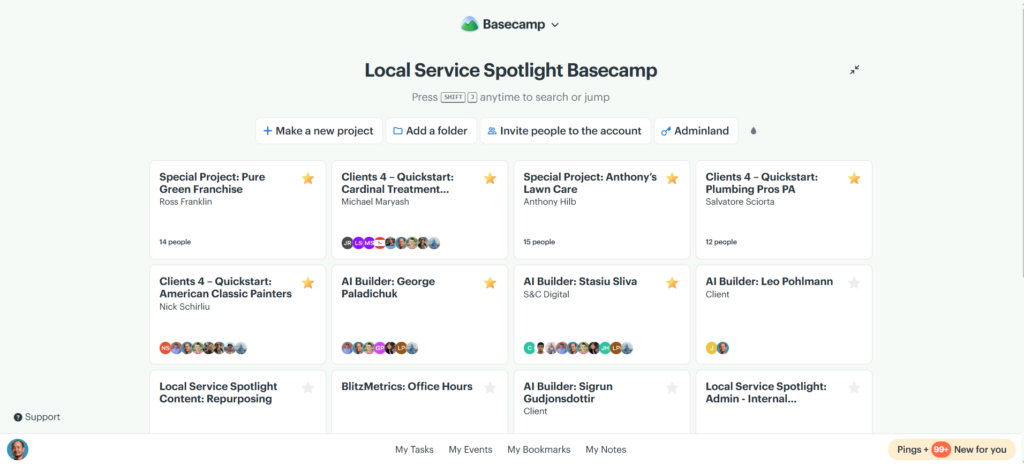
How to navigate
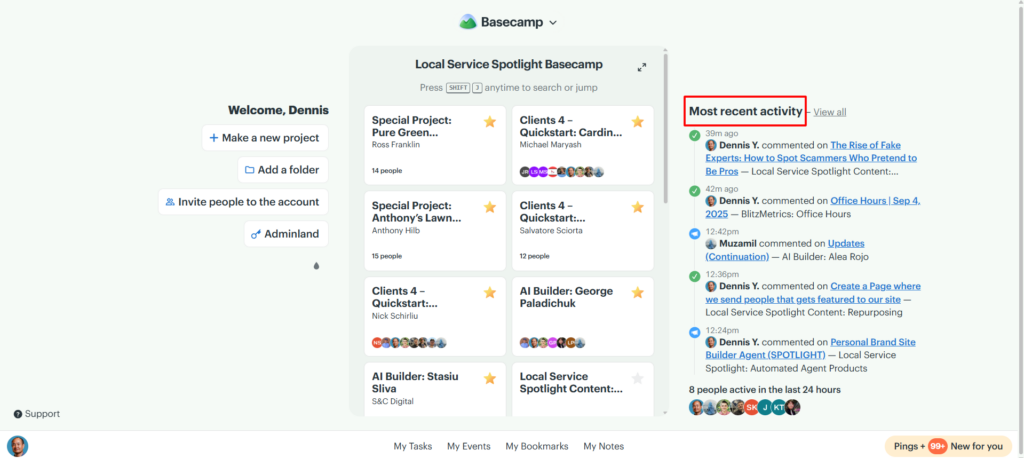
The home page is your dashboard. All your projects are right there.
Bookmark important posts so you don’t lose them.
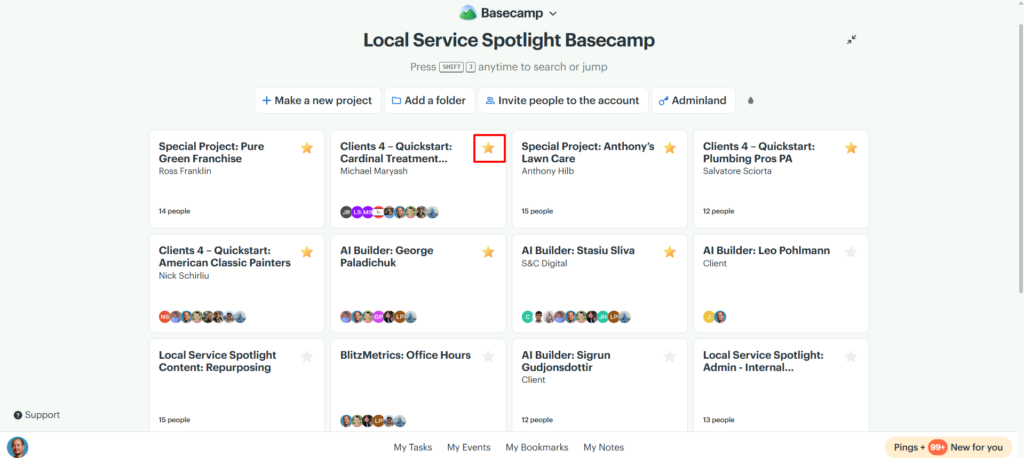
Check recent activity to stay in the loop.
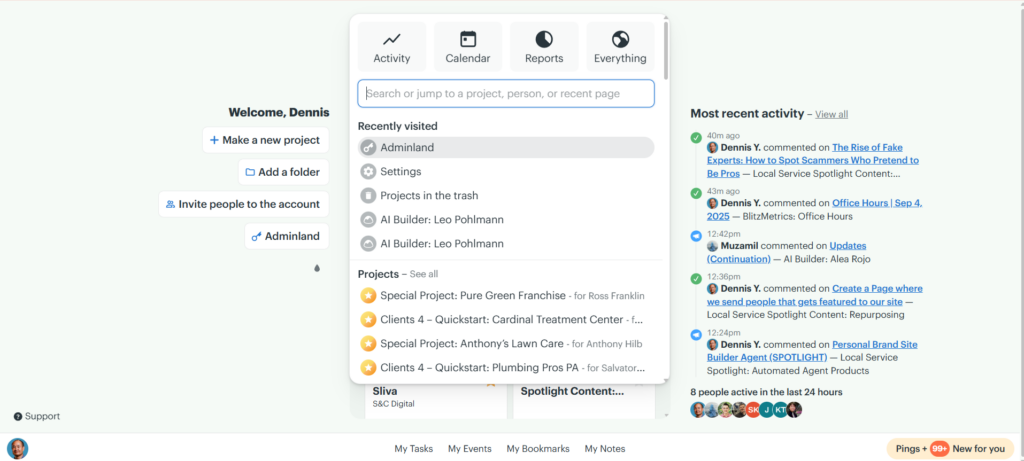
Pro tip: hit Shift+J to search or jump to any project instantly. Way faster than scrolling.
Why you might not see everything
As a Client, you only see items that have been specifically shared with you.
My team and I see everything by default. If a thread or document isn’t showing up for you, it just hasn’t been marked as client-visible yet.
This is not a bug. It’s how Basecamp permissions work.
Need more access?
If you can’t find something you need, ask in Basecamp or ask your project leader.
If your role requires broader visibility, like setting up an AI agent that needs to crawl all threads, request upgraded access from the Operations team. They’ll sort it out.
Originally published .