
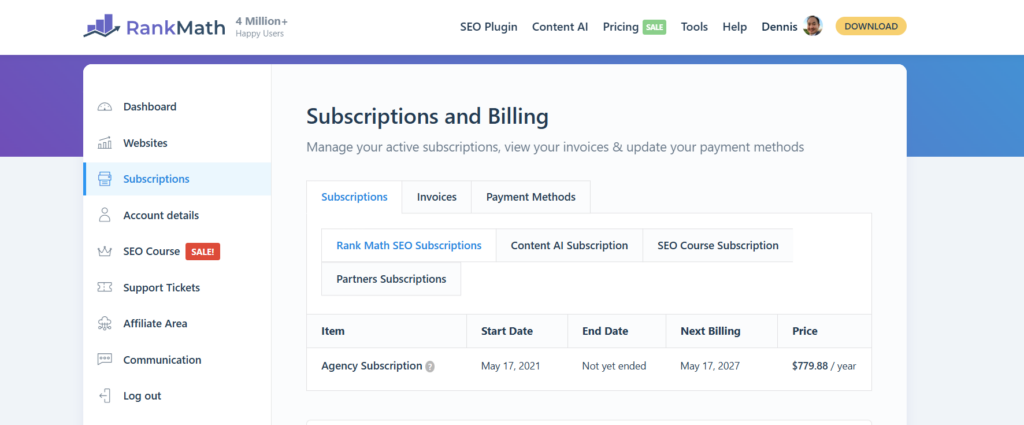
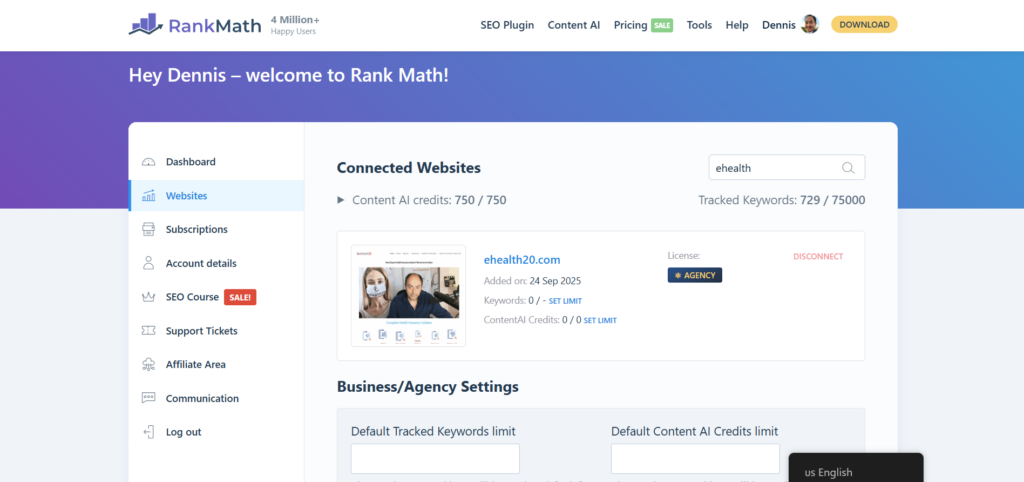
When we onboard a new client, we connect their site to our shared Rank Math Pro account. This gives us access to custom schema, which we need for our client work. We pay for the Agency subscription so our clients get the full power of Rank Math Pro at no extra cost. This is part of what we do inside our Maps Visibility System and Conversion Engine Package.
Here is how to set it up every time. Written so both humans and AI agents can follow it.
Before you begin
Make sure you have access to both of the following:
- The Rank Math account at https://rankmath.com/my-account
- The client’s WordPress admin at their-domain.com/wp-admin
If either login fails, stop and escalate to Operations with the message: “Cannot access [Rank Math account / client WordPress admin] for [client name].”
Step 1: Remove any existing Rank Math plugin
In the client’s WordPress admin, go to Plugins, then Installed Plugins. Search for “Rank Math.” If no Rank Math plugin appears, move on to Step 2.
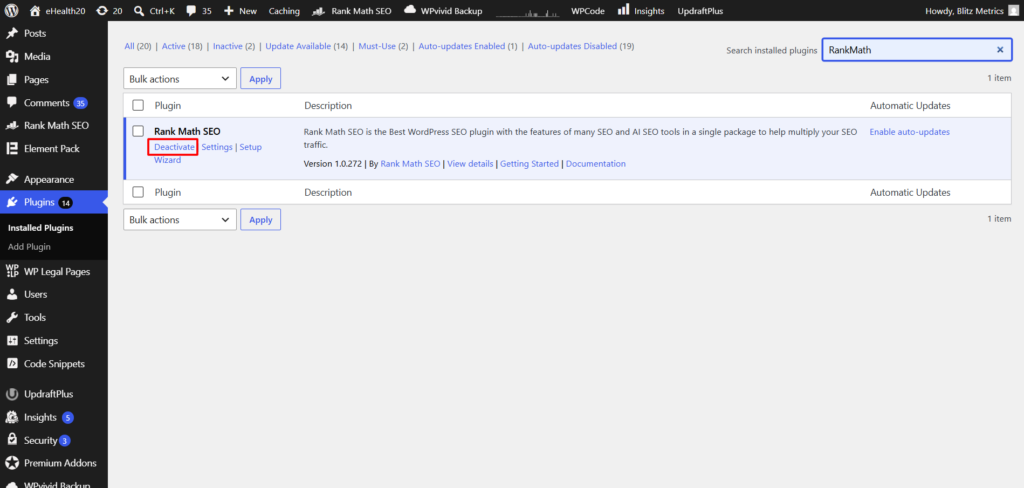
If a Rank Math plugin is installed, click Deactivate. Wait for the page to reload, then click Delete. Confirm the deletion when prompted.
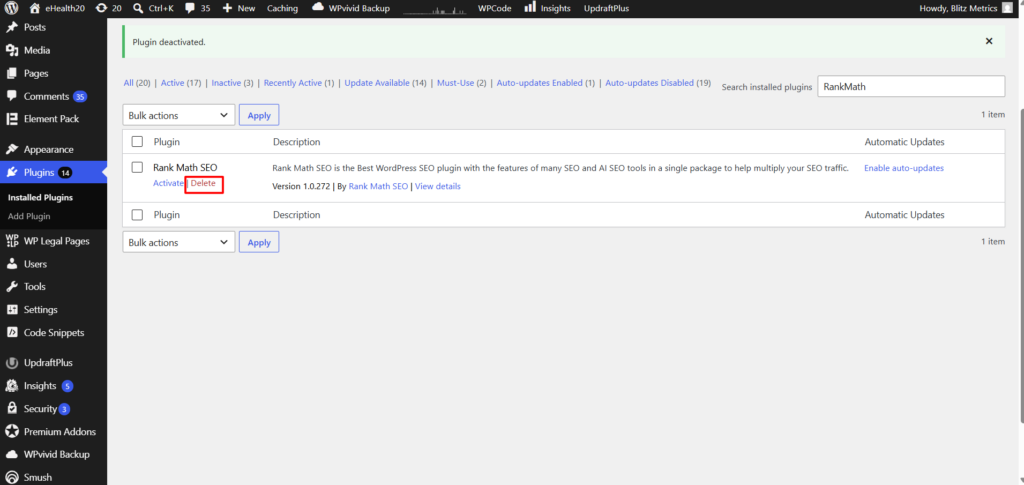
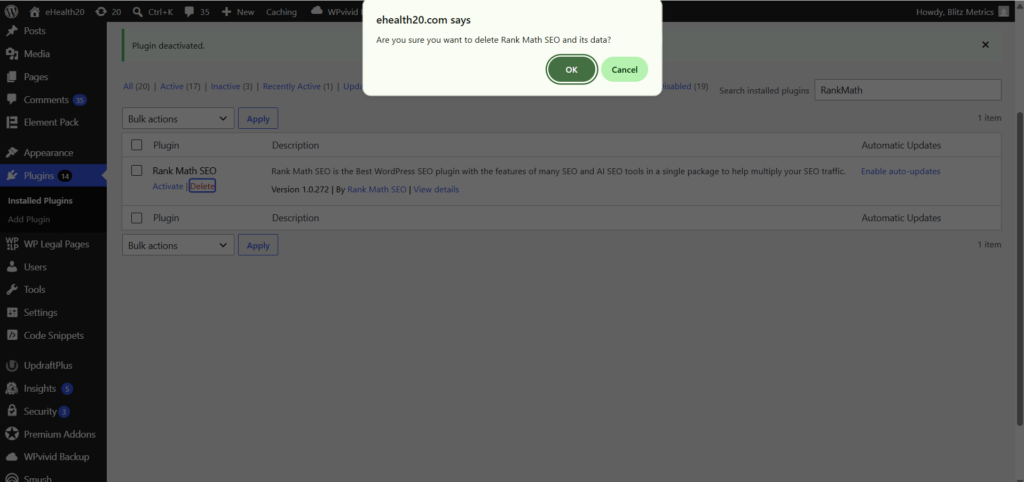
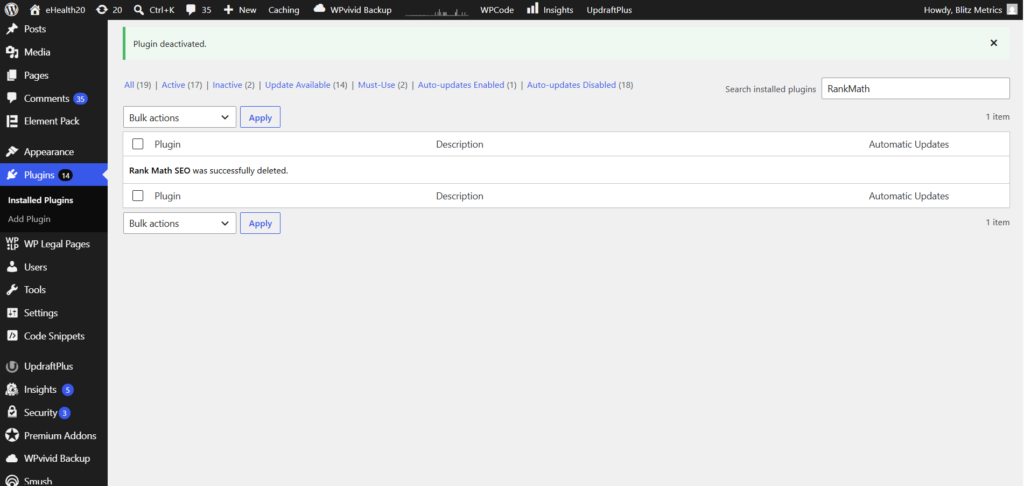
The free version conflicts with Pro. If you skip this step, the Pro plugin will not work correctly.
Expected result: No Rank Math plugin appears in the Installed Plugins list.
If the plugin will not deactivate or delete: Refresh the page and try again. If it still does not work, try deactivating all other plugins first, then deactivate and delete Rank Math.
Step 2: Download the Rank Math Pro plugin
Go to the Rank Math account dashboard at https://rankmath.com/my-account. Find the Downloads section and click the download button for Rank Math SEO Pro. A .zip file will download to your computer. Confirm the file name contains “rank-math-pro” and ends in .zip.
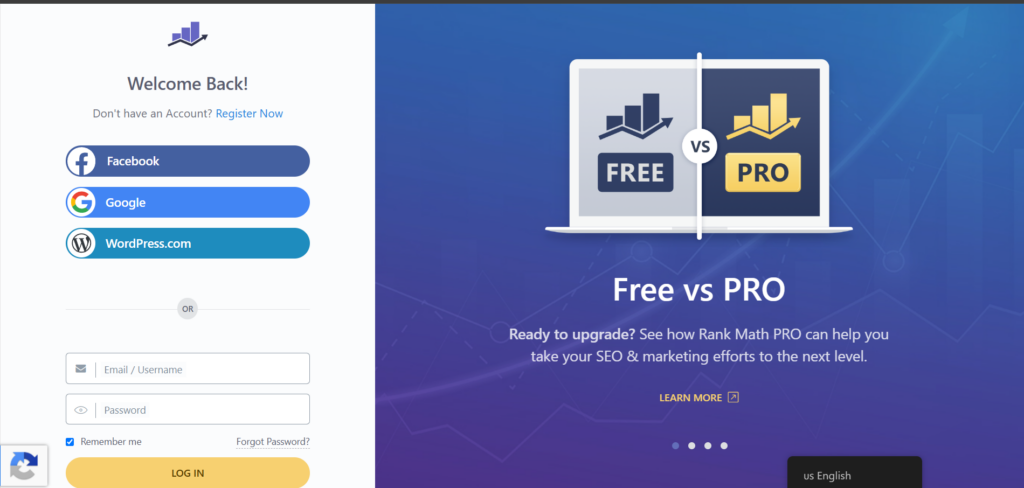
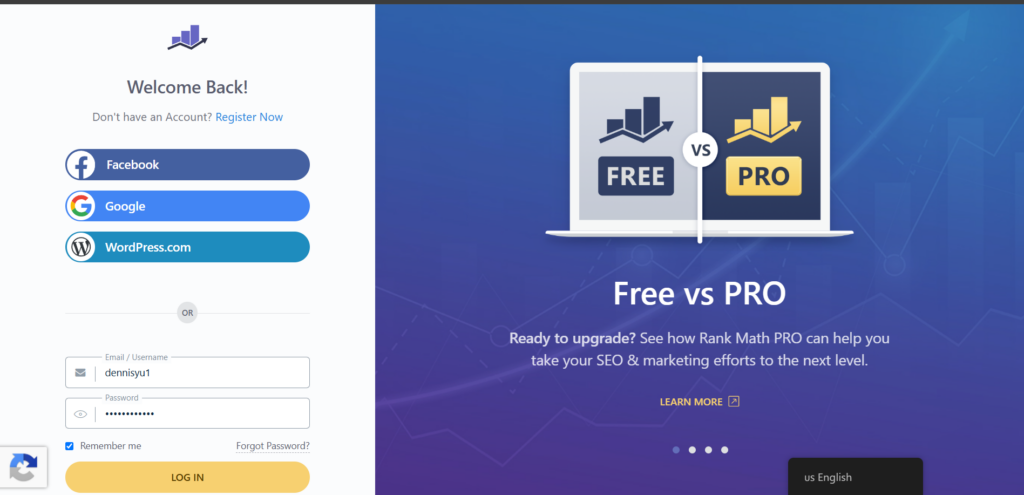
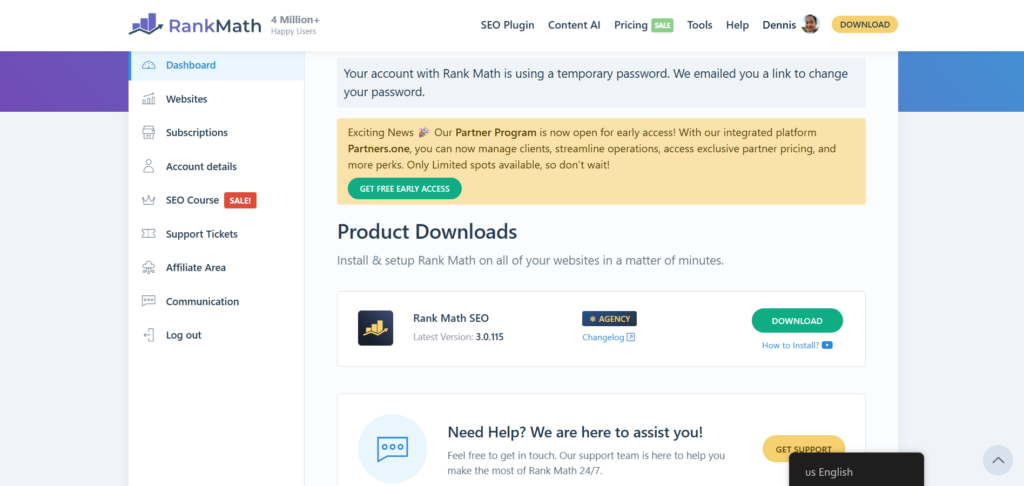
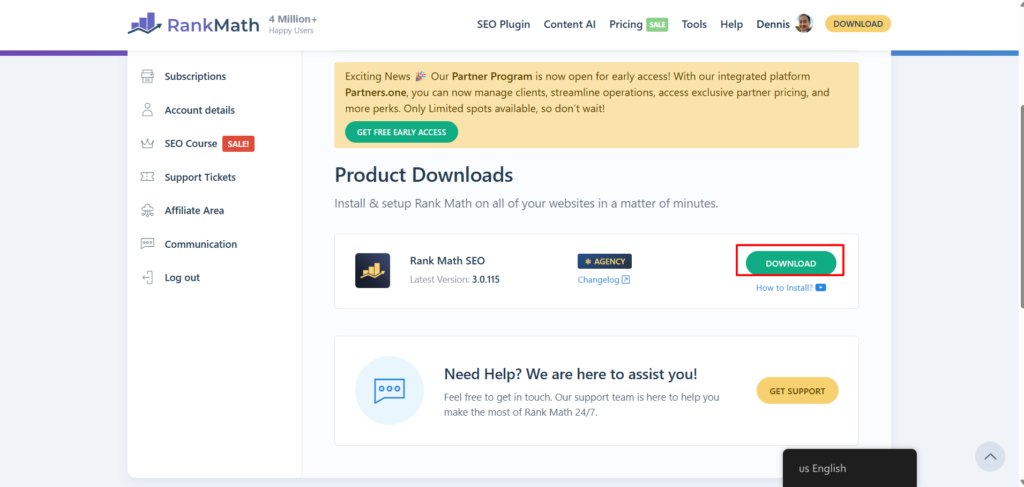
Expected result: You have a .zip file saved locally.
If the download button does not appear: Log out of the Rank Math account and log back in. Navigate to the Downloads section again. Confirm the account shows an active Agency subscription on the account page.
Step 3: Upload and install the plugin
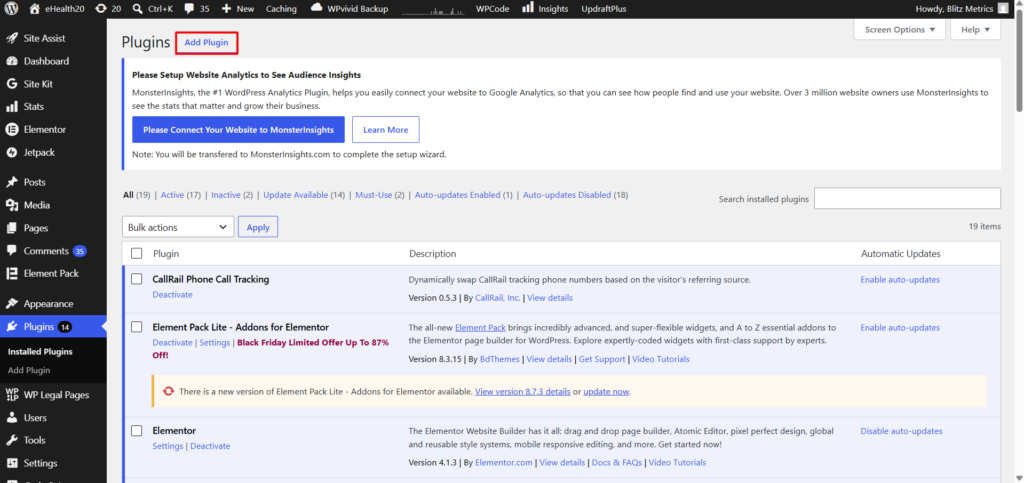
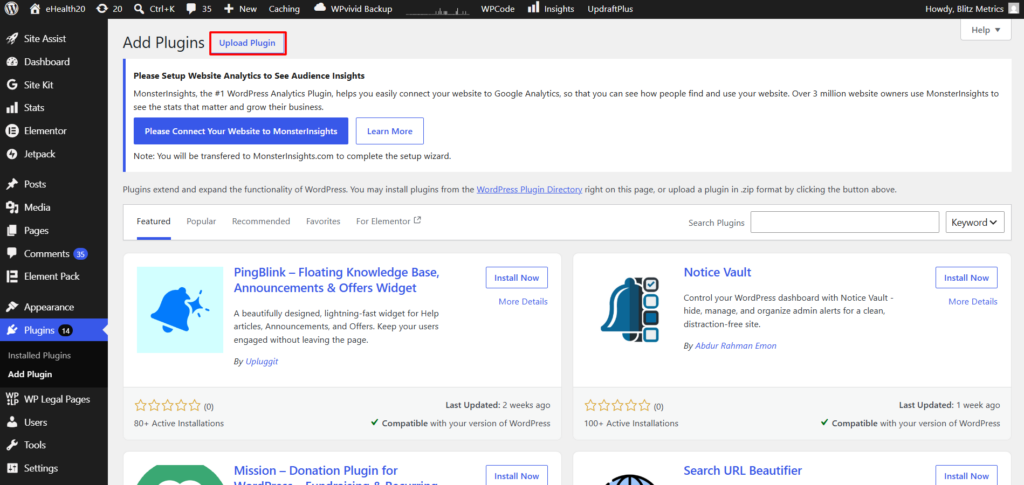
In the client’s WordPress admin, go to Plugins, then Add New. Click Upload Plugin at the top of the page. Click Choose File and select the .zip file from Step 2. Click Install Now.
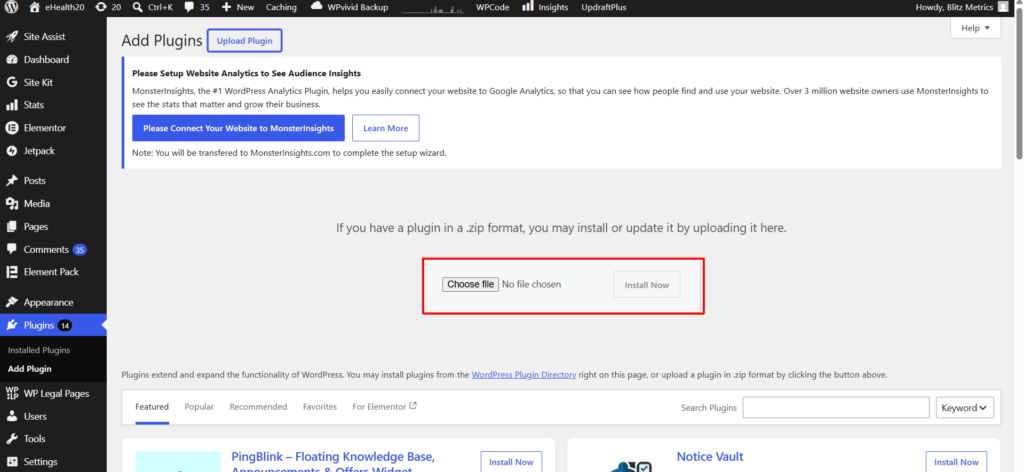
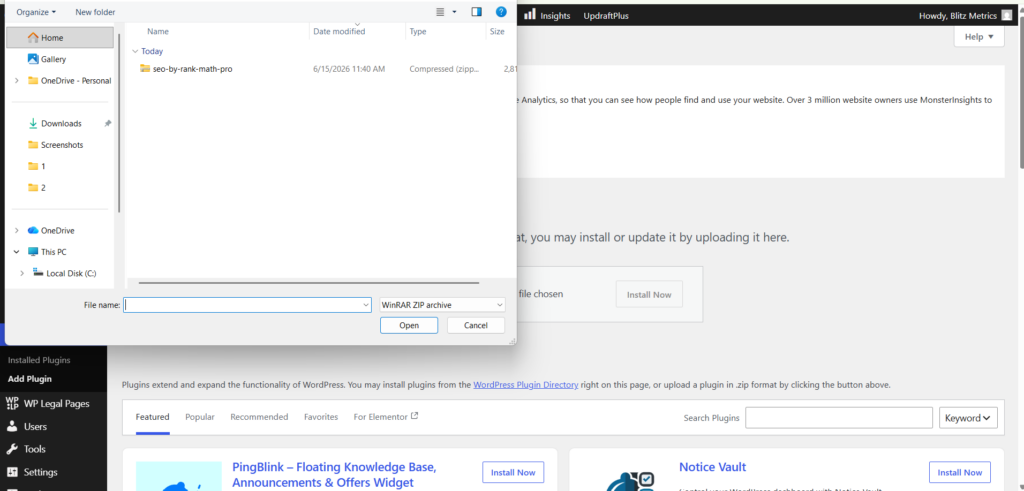
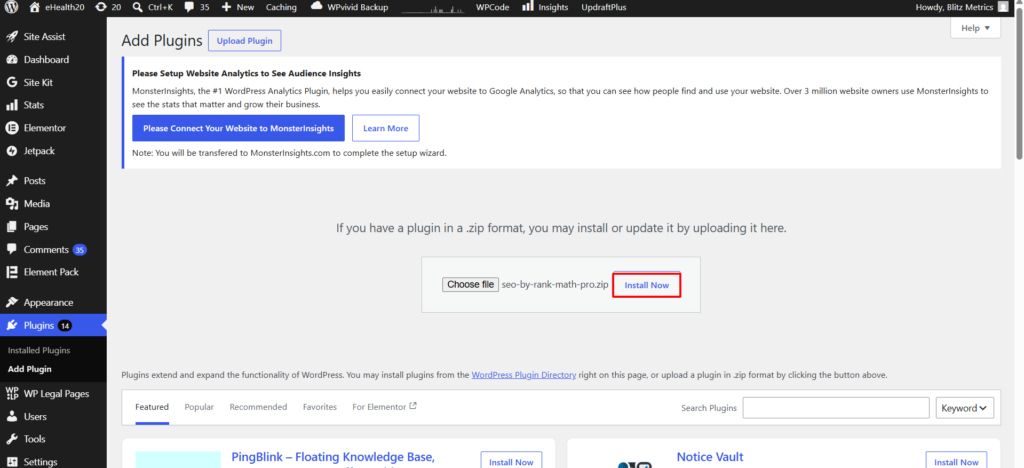
Wait for the installation to complete. You should see the message “Plugin installed successfully.” Click Activate Plugin.
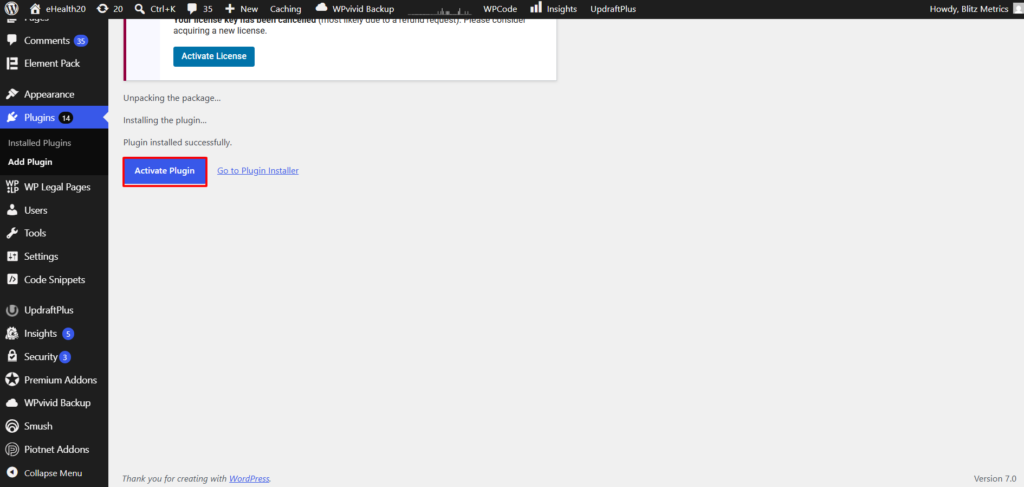
Expected result: The page confirms “Plugin activated.” Rank Math Pro appears in the Installed Plugins list with status Active.
If installation fails with an error about an existing plugin: Go back to Step 1 and make sure the old plugin was fully deleted, not just deactivated. Then try Step 3 again.
If installation fails with a different error: Note the exact error message. Try uploading the .zip file one more time. If the same error appears on the second attempt, move on to troubleshooting at the bottom of this article.
Step 4: Connect to our Rank Math account
After activation, Rank Math will display a setup screen with a “Connect Your Account” button. Click it. If prompted, authorize the connection using the Rank Math account credentials. Wait for the connection to complete.
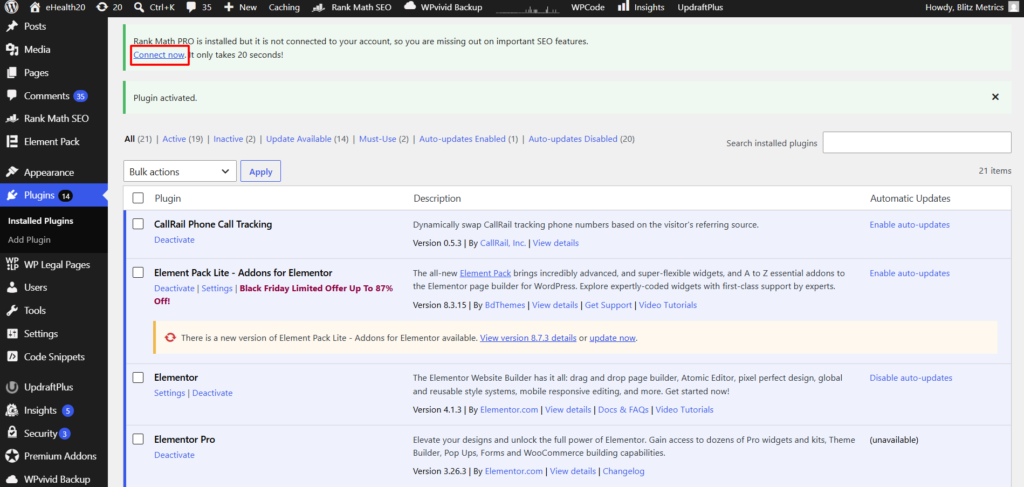
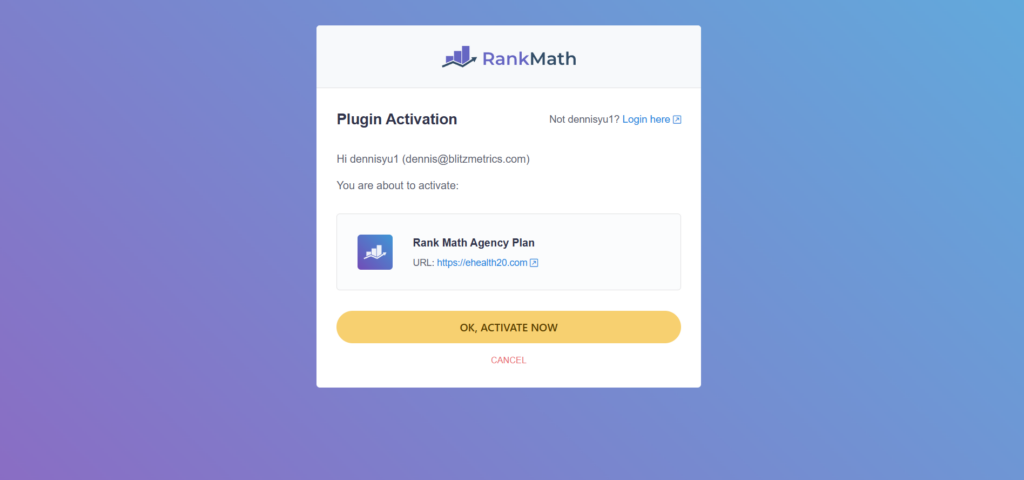
If the Connect button does not appear, go to Rank Math, then Dashboard in the WordPress sidebar. Look for a connection prompt there. If it is still not visible, deactivate the plugin under Installed Plugins, then reactivate it.
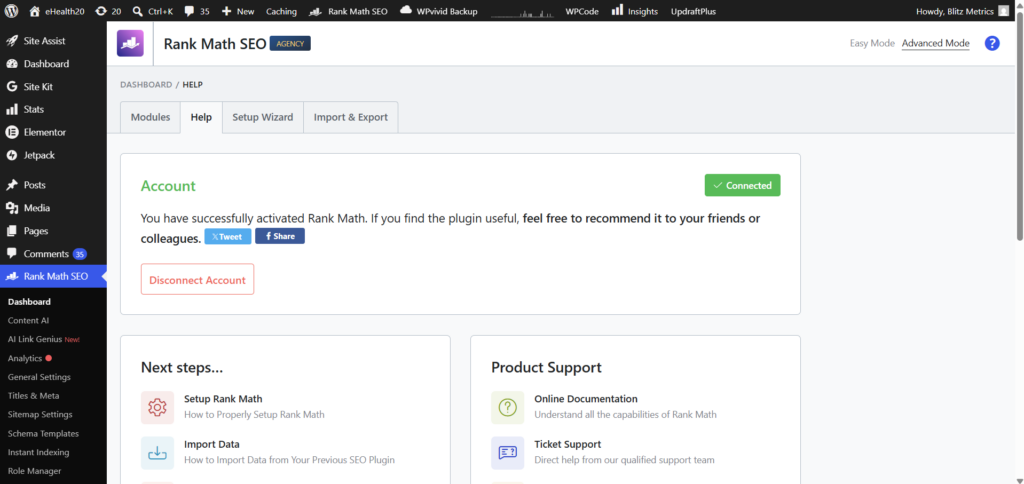
Expected result: The Rank Math dashboard shows a “Connected” status with the account name.
If the Connect button does not appear: Go to Rank Math, then Dashboard in the WordPress sidebar. Look for a connection prompt there. If it is still not visible, go to Plugins, then Installed Plugins. Deactivate Rank Math Pro, then reactivate it. The Connect prompt should appear after reactivation. Try this up to three times.
If the connection fails or times out: Wait 30 seconds and try again. Try up to three times.
Step 5: Verify Pro features are active
In the WordPress admin, go to Rank Math, then Dashboard. Confirm it displays “PRO” next to the Rank Math logo. Then go to any Post or Page in the editor. Open the Rank Math panel in the sidebar. Confirm that Schema options are available and include Custom Schema.
The task is complete when all three of the following are true:
- Rank Math Pro shows as Active in Plugins.
- Rank Math dashboard shows Connected status.
- Custom Schema is available in the post or page editor.
Troubleshooting
If you have followed all steps above, retried where instructed, and the task is still not complete, escalate to Operations (operations@localservicespotlight.com). Include the following in your message:
- The client name and site URL
- Which step failed
- The exact error message or what you observed
- How many times you retried
The most common mistake is forgetting to remove the free Rank Math plugin before installing Pro. If you are troubleshooting a failed setup, check this first.
Summary for agents: This task has five steps plus a prerequisite check. Do not skip steps. Verify the expected result after each step before proceeding. Use the retry instructions if a step does not succeed on the first attempt. Only escalate after all retry options have been exhausted.
Originally published .