
Local Service Spotlight · Home Service Growth
One growth system. Three jobs. More booked work.
Start with a free Quick Audit. If we are a fit, one $3,500/month system helps your business get found, get chosen, and get booked, without making you choose between disconnected packages.
Paid media spend and the exact scope, locations, and terms are confirmed in writing before activation.
The whole public offer
The path is deliberately simple.
The audit diagnoses the constraint. The Home Service Growth System connects the three functions that turn local demand into booked work.
Relationships and evidence
Real humans are the source material.
We work from conversations, field experience, reviews, customer questions, and visible execution, not anonymous filler.
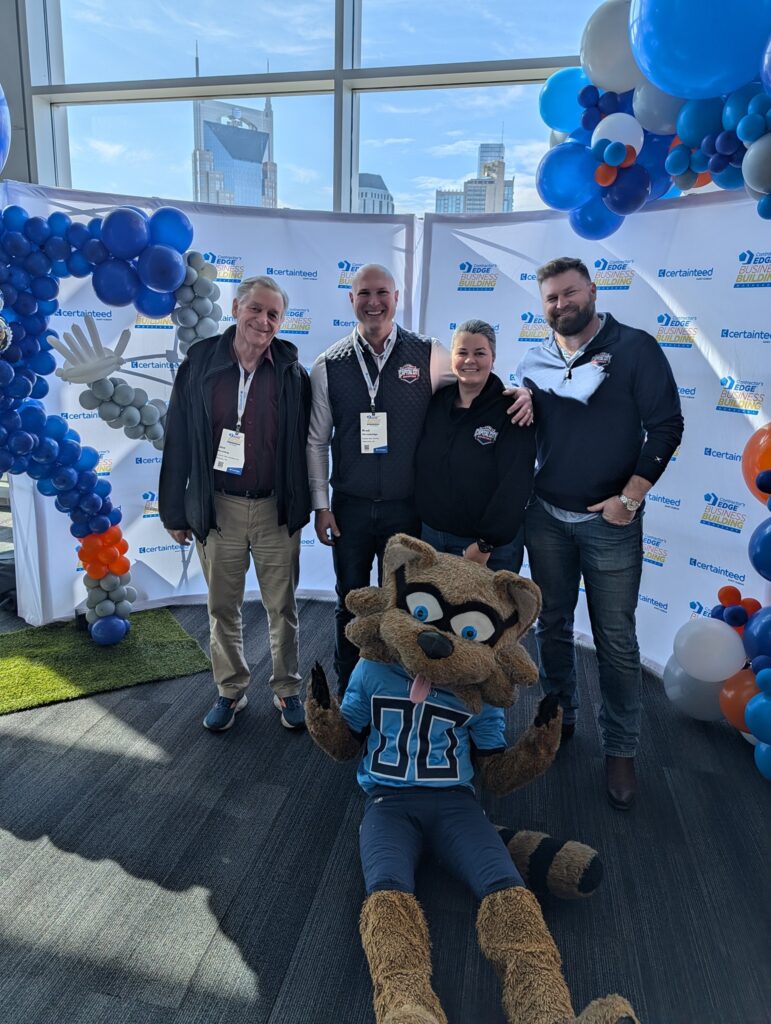
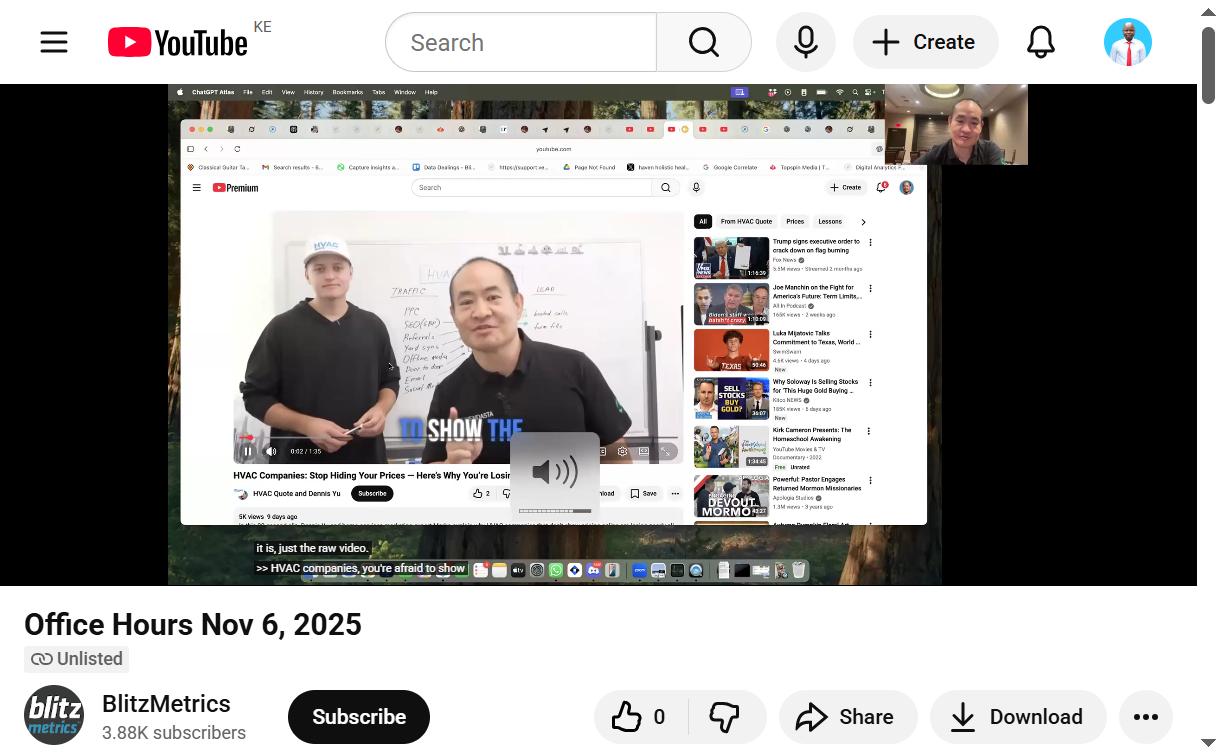
Dennis Yu and Dan Antonelli, founder of KickCharge Creative, on why most contractors pay the bland tax, in a real recorded conversation.
What we publish and teach
Rank for the work, not the login page.
These are the systems Local Service Spotlight is built around — personal brand, Google Knowledge Panels, Dollar-a-Day ads, the Content Factory, AI agents, and a real SEO score.
Prescription before implementation
See what your business needs first.
Most businesses should begin with the free Quick Audit. Referred and already-approved operators can use the direct start path.
Already completed an audit or been approved? Start onboarding →
Setting up payments or financing? Whop for home-service businesses: financing at the estimate, paid upfront, and the Spotlight bonus when you sign up through our founder.